← WORK FLOOR.DOC · 06 ENTRIES
00 · CUTTING ROOM FLOOR

Work that never got its own case study

Six entries from New Relic, Cvent and Comscore, with a few screens each and the short version of the story.

01 · CERTIFICATES

Certificates, before they expire

A certificate management capability: expiry at a glance, a full inventory, and renewal through partner certificate authorities, with a status tile surfaced on every APM entity.

NEW RELIC · DESIGNER

It started as an empty request. I turned it into a full vision for a new observability vertical at New Relic: a proof of concept that grew into part of a strategic-partnerships exploration before it was shelved.
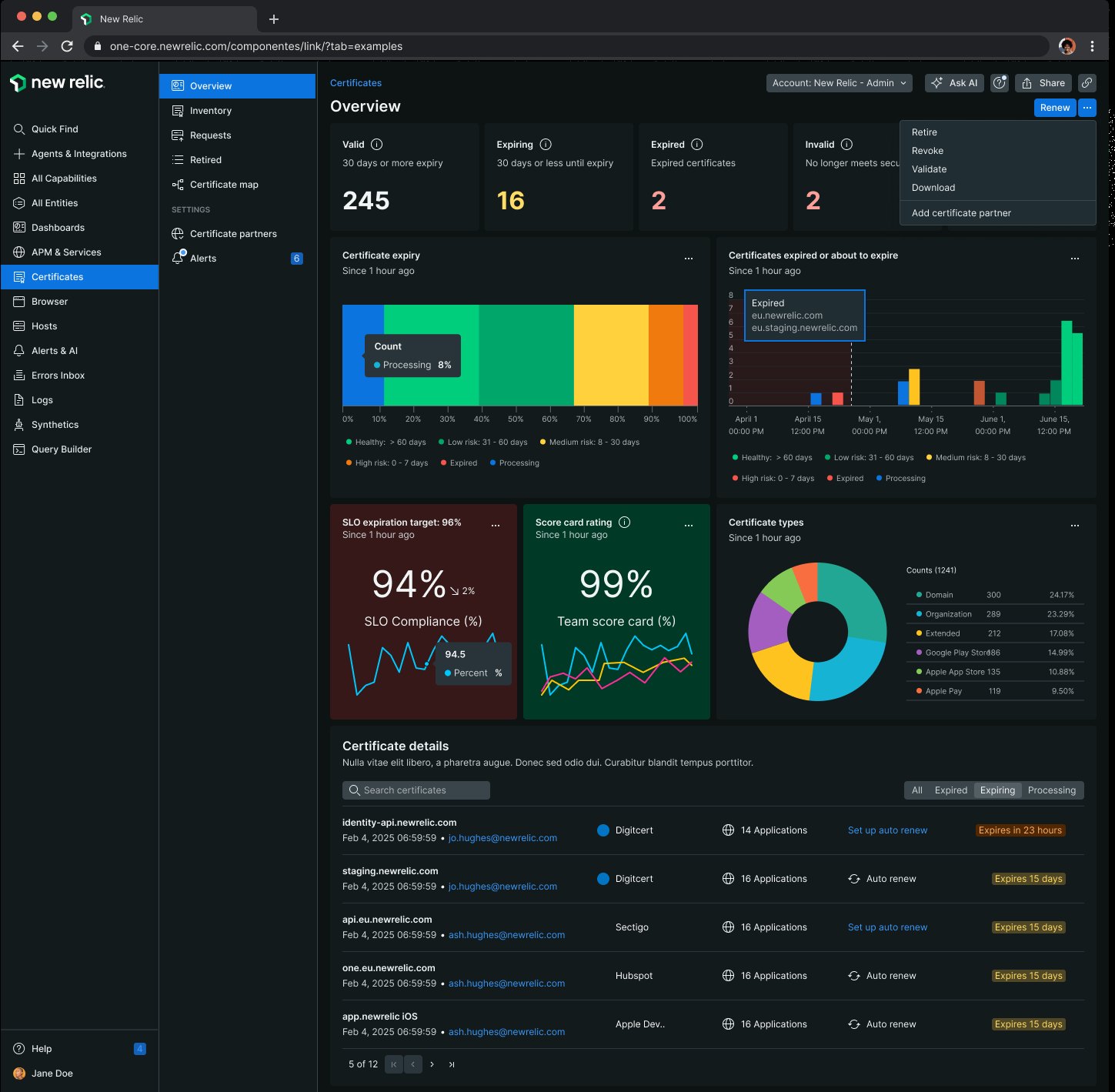
Certificates overview: 245 valid, 16 expiring, 2 expired, 2 invalid; an expiry bar split into risk bands, SLO compliance at 94%, team score card at 99%, and a donut of certificate types FIG. 1 — OVERVIEW: EXPIRY, SLO COMPLIANCE, TYPES
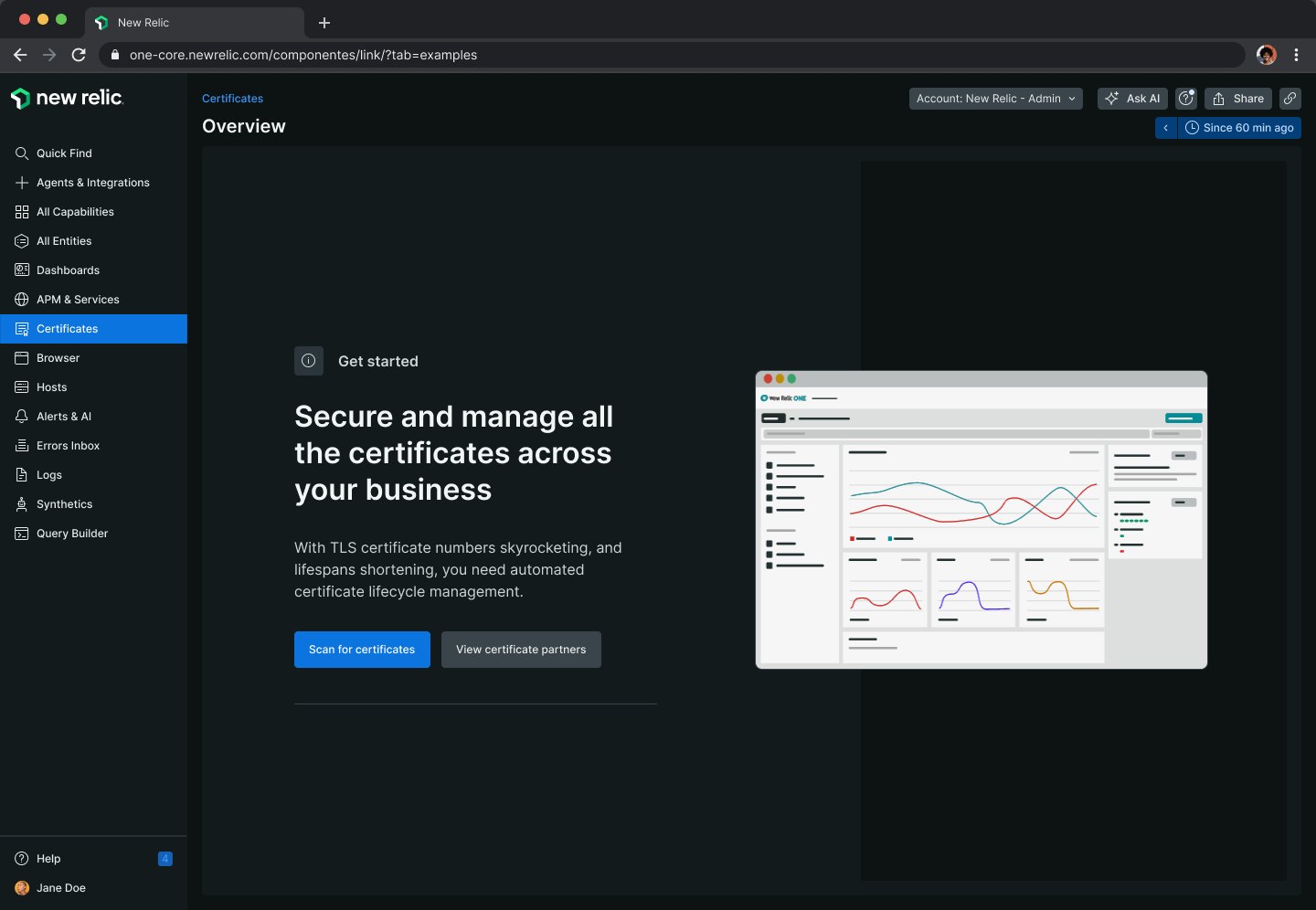
Certificates first run: Secure and manage all the certificates across your business, with Scan for certificates and View certificate partners buttons beside a preview of the dashboard
FIG. 2 — FIRST RUN
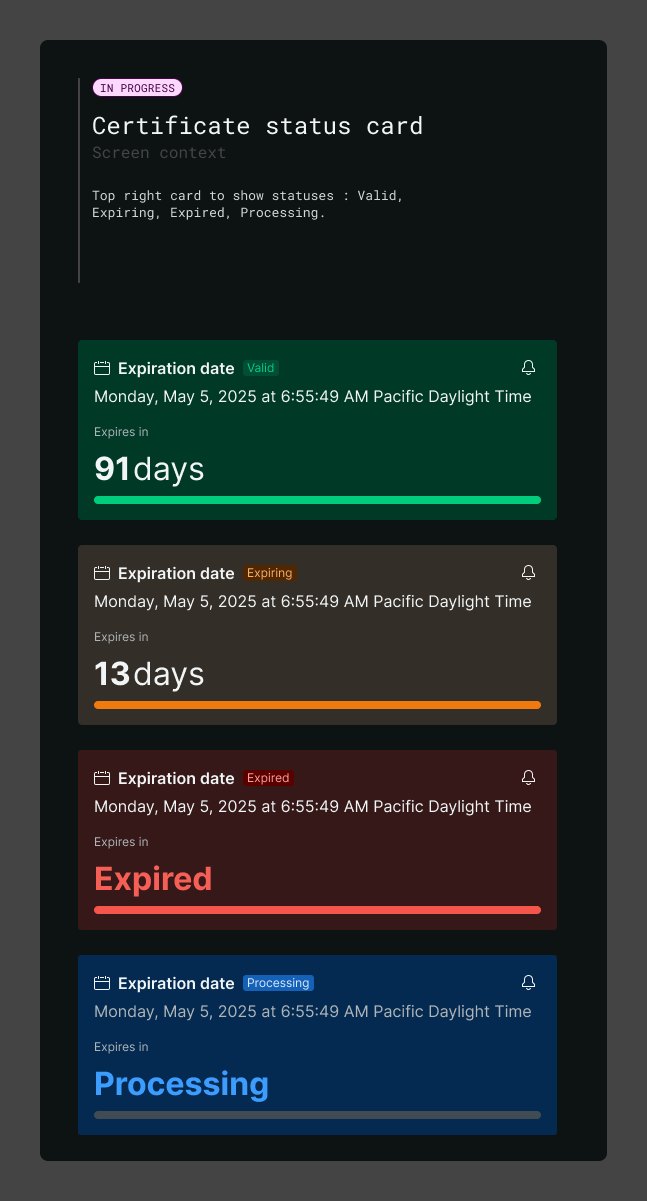
Certificate status card in four states: valid with 91 days left in green, expiring in 13 days in amber, expired in red, and processing in blue
FIG. 3 — STATUS CARD, FOUR STATES
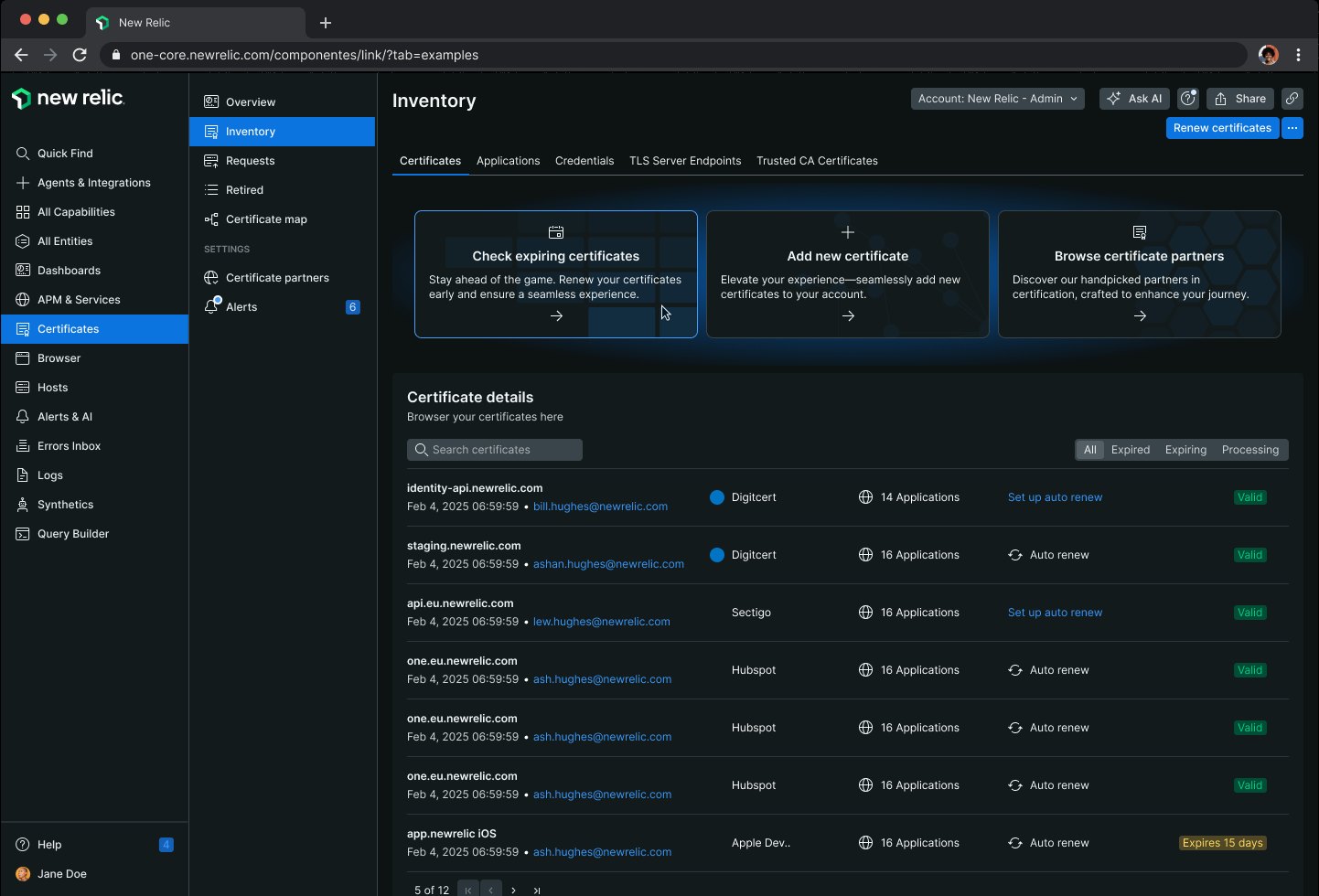
Certificate inventory: three action cards (check expiring, add new, browse partners) above a list of certificates with their authority, applications and status
FIG. 4 — INVENTORY
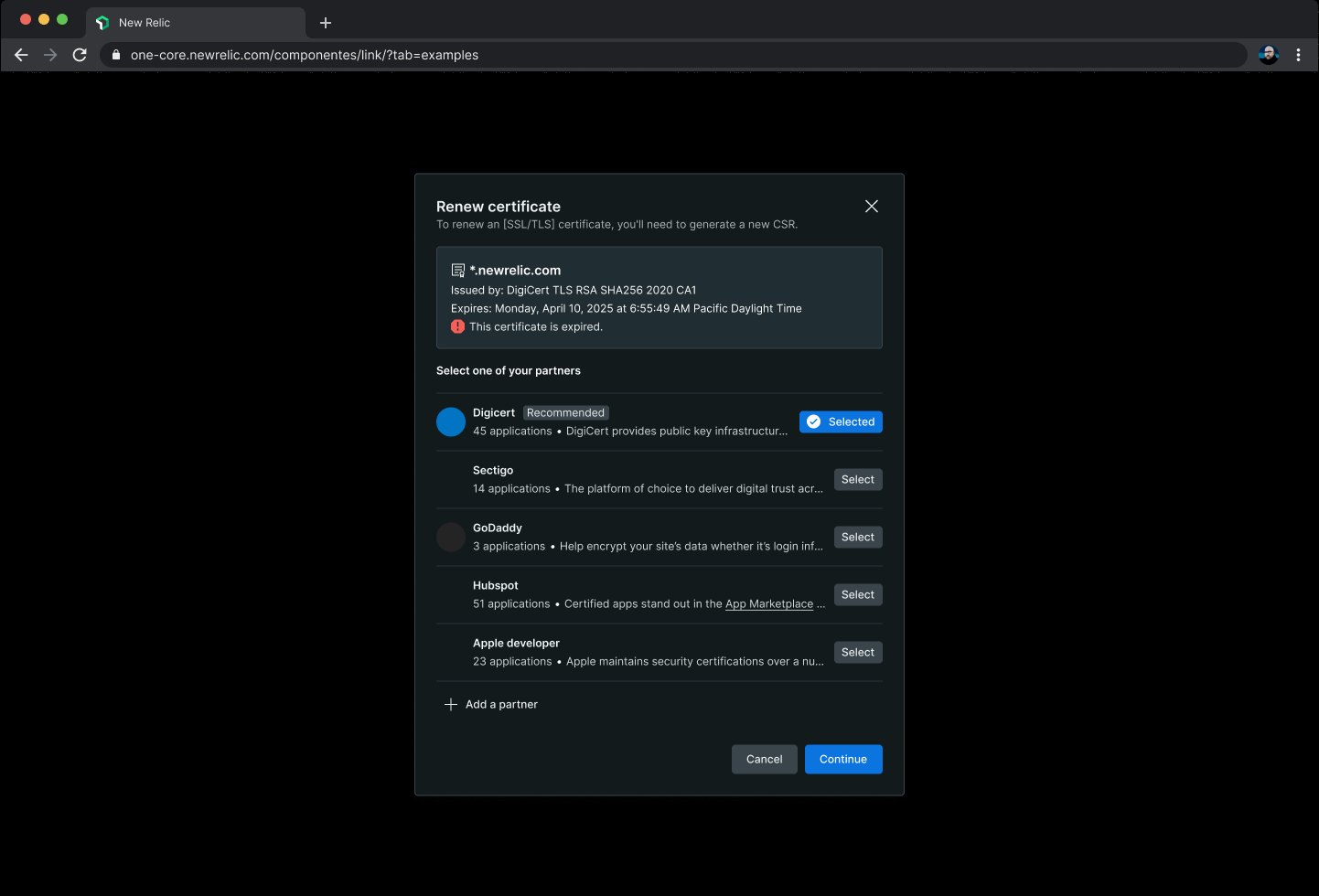
Renew certificate dialog for an expired *.newrelic.com certificate, with DigiCert recommended and selected among five partner authorities
FIG. 5 — RENEW WITH A PARTNER CA
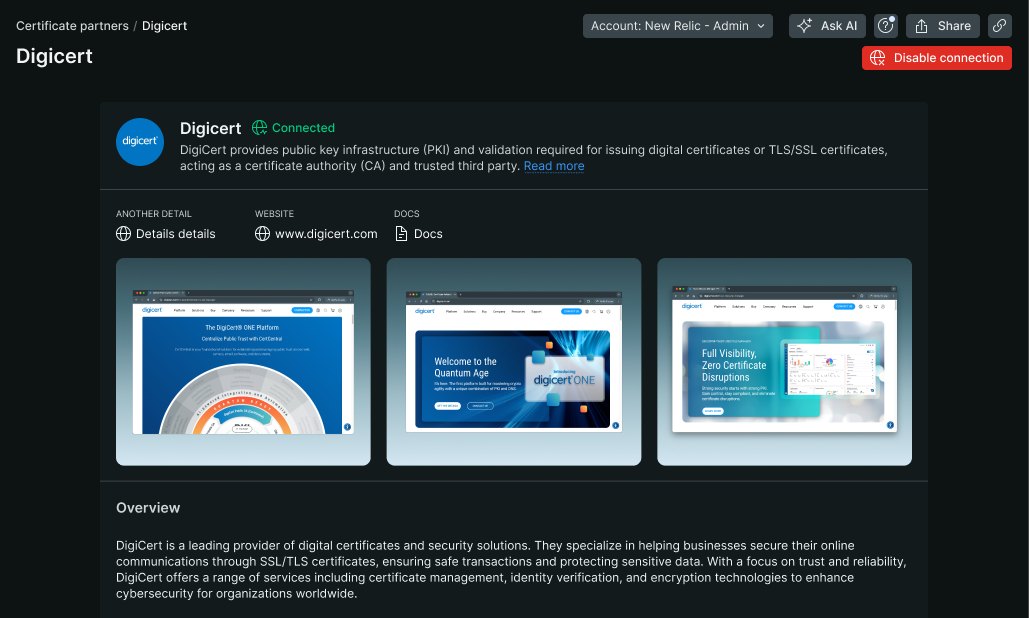
DigiCert partner page: the DigiCert logo marked Connected with a Disable connection button, links to details, website and docs, three DigiCert promo screens, and an overview of the company
FIG. 6 — A PARTNER CA, CONNECTED: DIGICERT
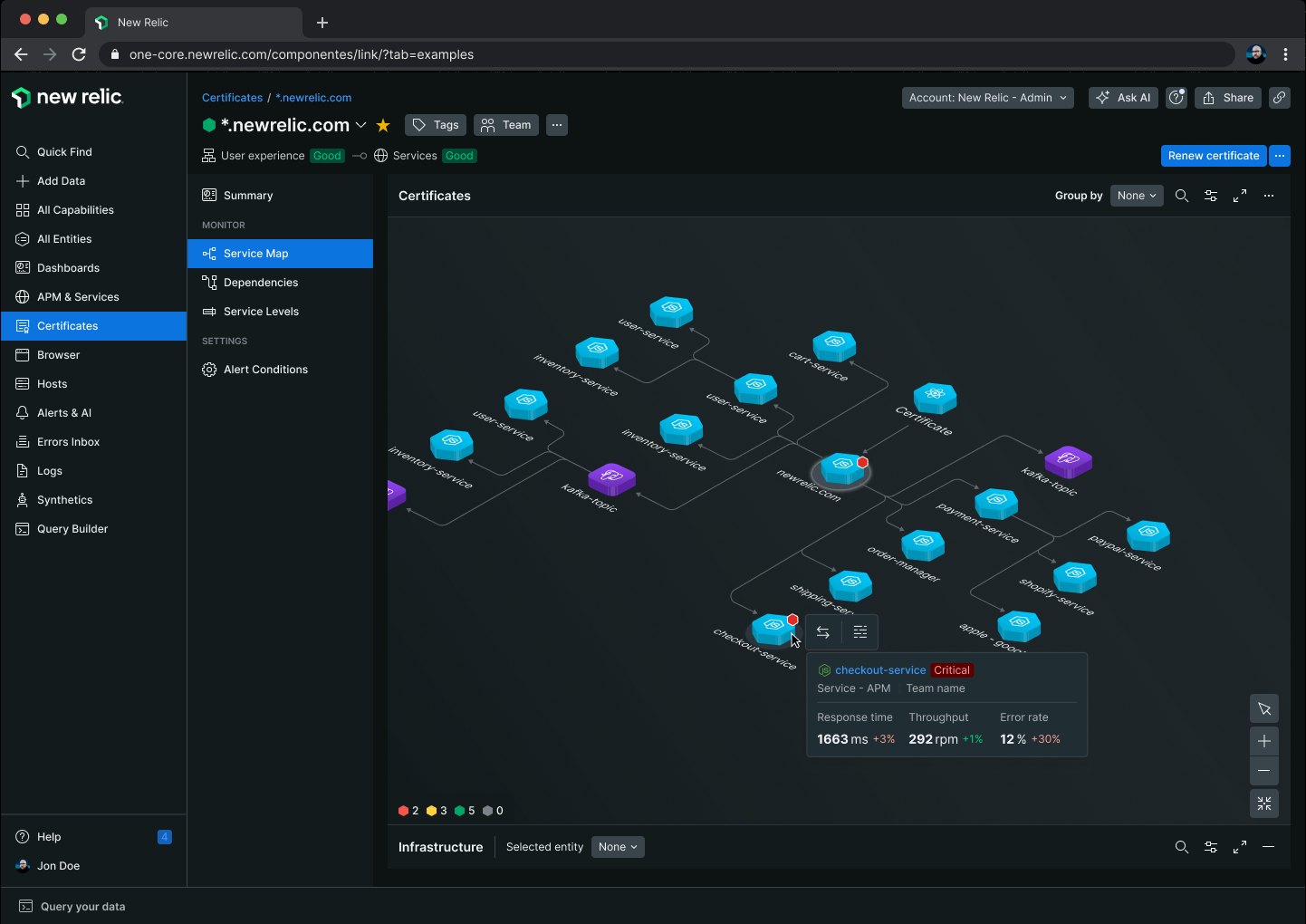
Certificate map: the services that depend on one certificate drawn as a network, with a tooltip open on a critical checkout-service FIG. 7 — CERTIFICATE MAP
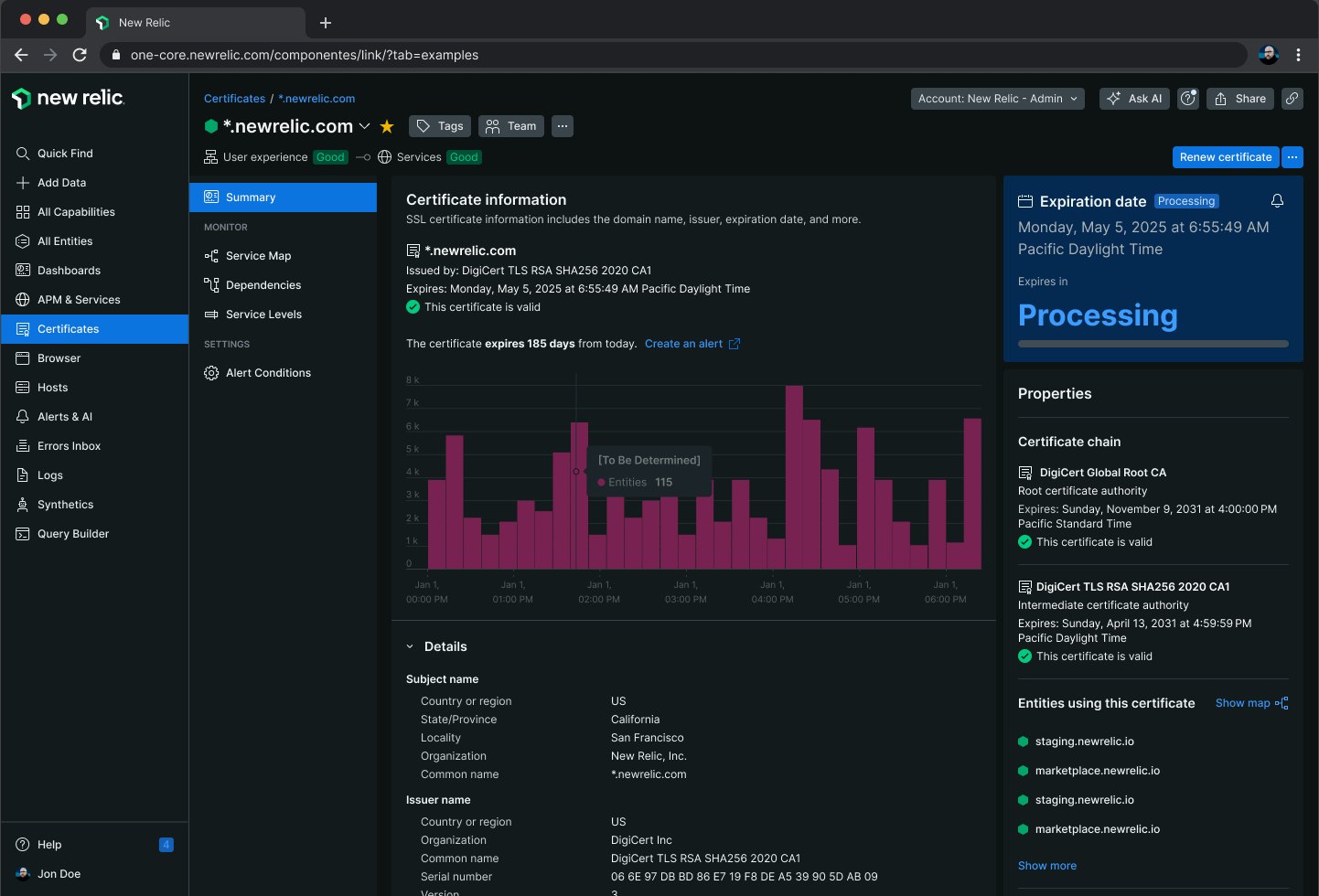
A certificate's own page: issuer and validity, a bar chart of entities over time with a hover tooltip, a Processing expiration card, the certificate chain and the entities using it
FIG. 8 — ONE CERTIFICATE, ITS CHAIN AND REACH
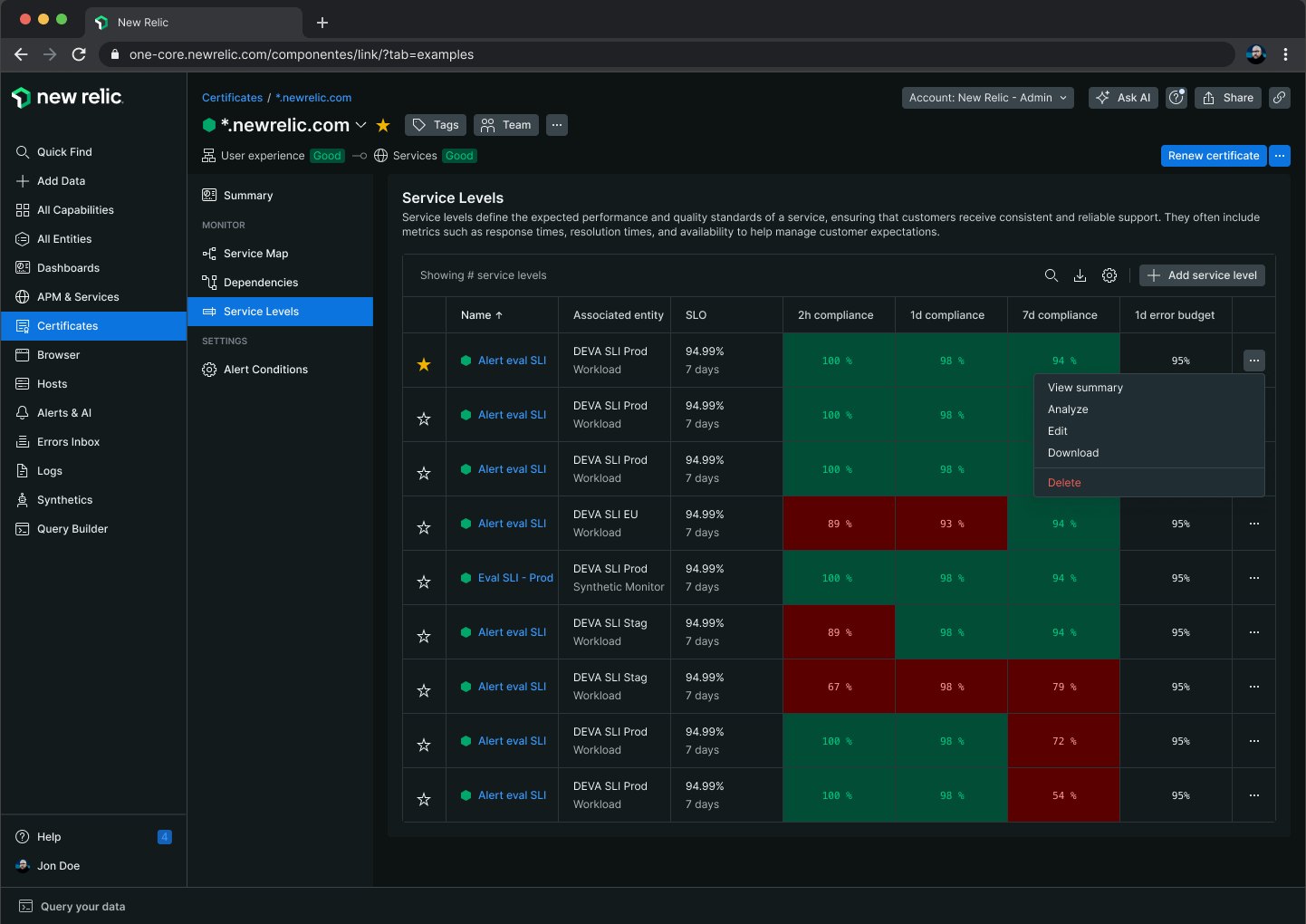
Service levels for a certificate: a table of SLIs with 2-hour, 1-day and 7-day compliance cells shaded green or red, and a row menu open on summary, analyze, edit, download and delete
FIG. 9 — SERVICE LEVELS AS A HEATMAP
02 · KAFKA & DATABASES

One navigator, four products

One hexagon navigator, revised to serve four products at once: EC2, Kubernetes, Kafka health by cluster and topic, and database monitoring down to the slow query.

NEW RELIC · DESIGNER

Four teams (AWS EC2, Kubernetes, Kafka and Databases) worked together to revise the entity navigator for our design system’s visualization team, making it flexible enough to serve each of the sister applications it was built for.
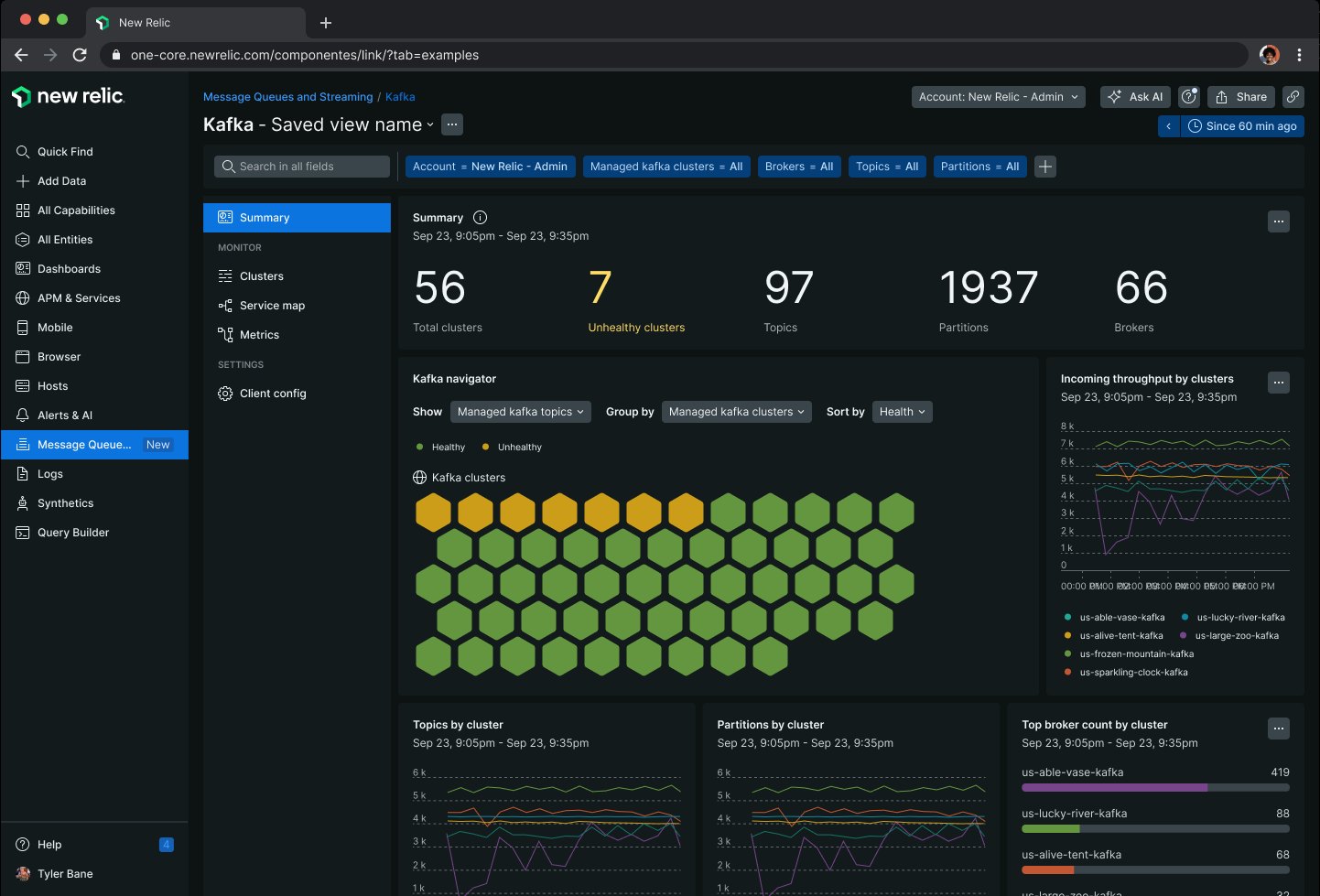
Kafka summary: 56 clusters, 7 unhealthy, 97 topics, 1,937 partitions, 66 brokers; the navigator as a field of hexagons, with throughput and broker charts FIG. 10 — KAFKA: CLUSTERS, TOPICS, PARTITIONS, BROKERS
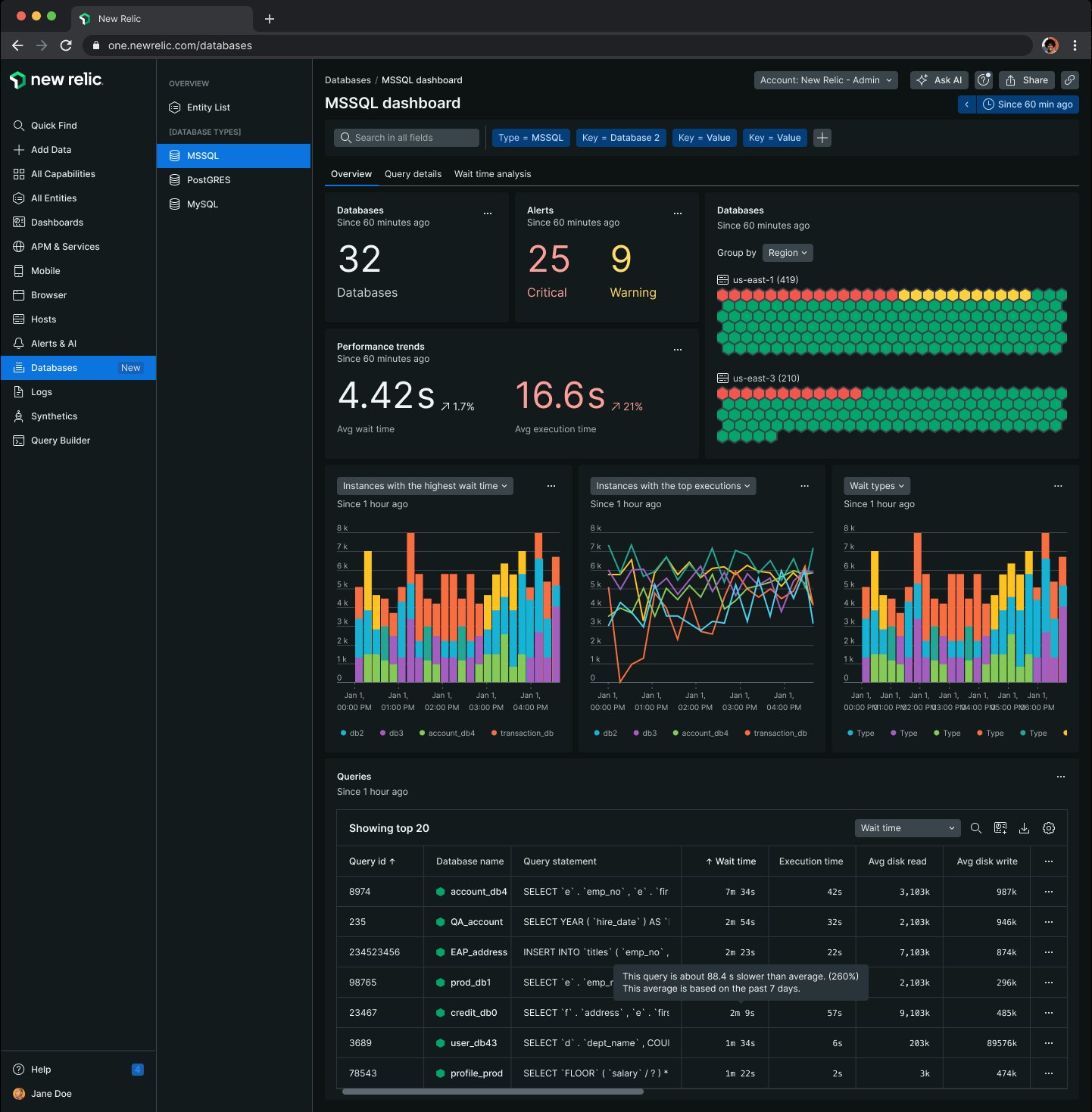
MSSQL dashboard: 32 databases, 25 critical and 9 warning alerts, performance trends, a hexagon field by region, and the slowest queries
FIG. 11 — DATABASES OVERVIEW
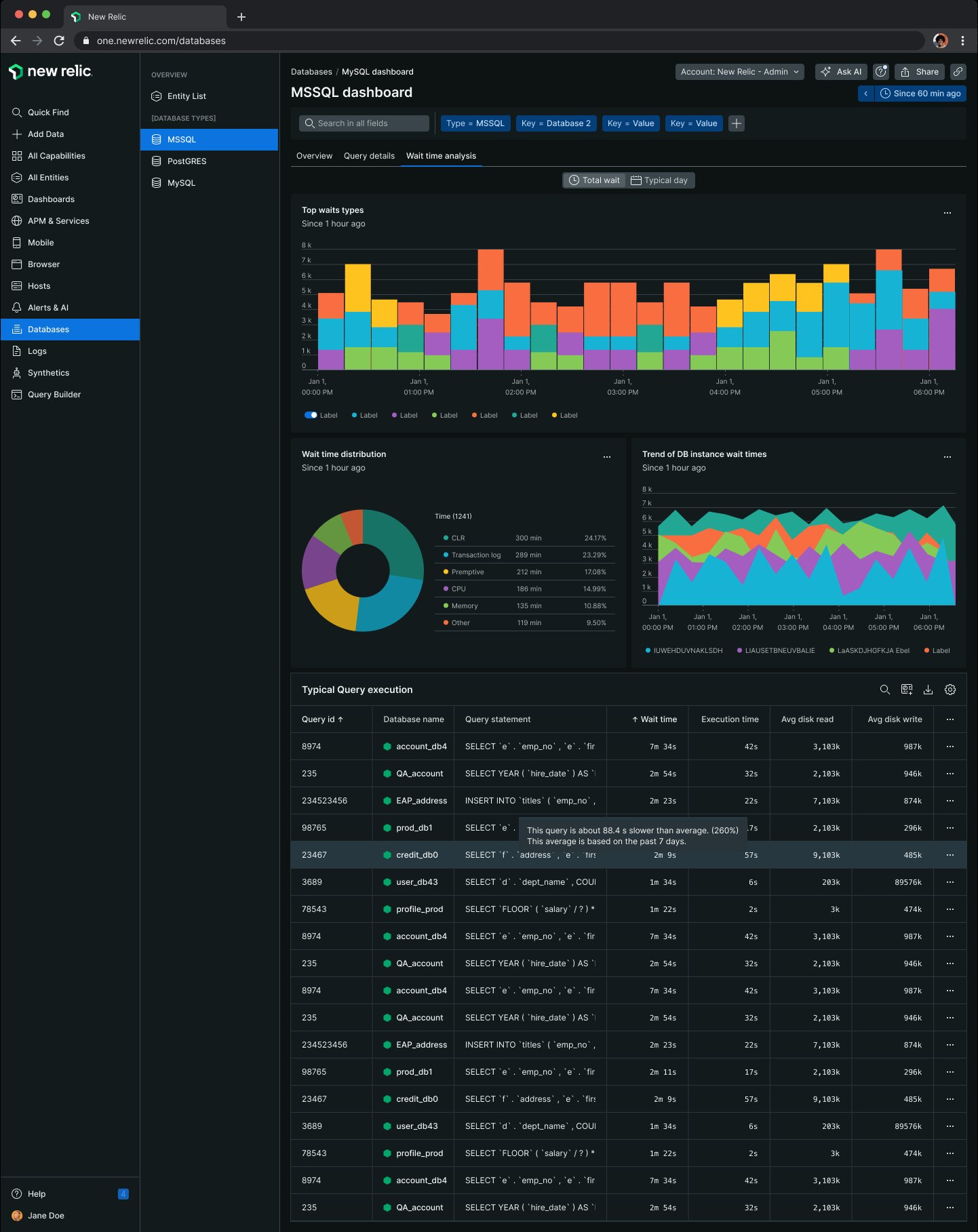
Wait-time analysis: top wait types over time, a wait distribution donut, instance wait trends and a typical query table
FIG. 12 — WAIT-TIME ANALYSIS
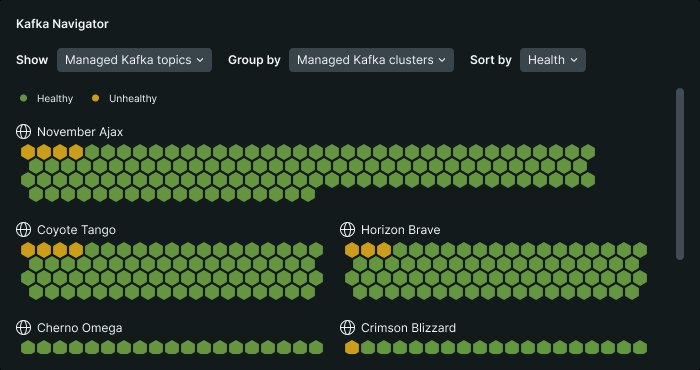
The Kafka Navigator card up close: hexagons grouped by cluster, amber for unhealthy topics among the green
FIG. 13 — THE NAVIGATOR, UP CLOSE
03 · FEDERATED DATA

Outside data, queried in notebooks

Connect outside data sources like Postgres, Kafka and Cassandra, and query them in notebooks that mix charts, code and prose.

NEW RELIC · DESIGNER

NR Lens let customers tie their business to their observability. It began as a proof of concept named for the problem, federated data, and became a shipped product once we connected it to other work in flight, like Notebooks, giving them real context in turn.
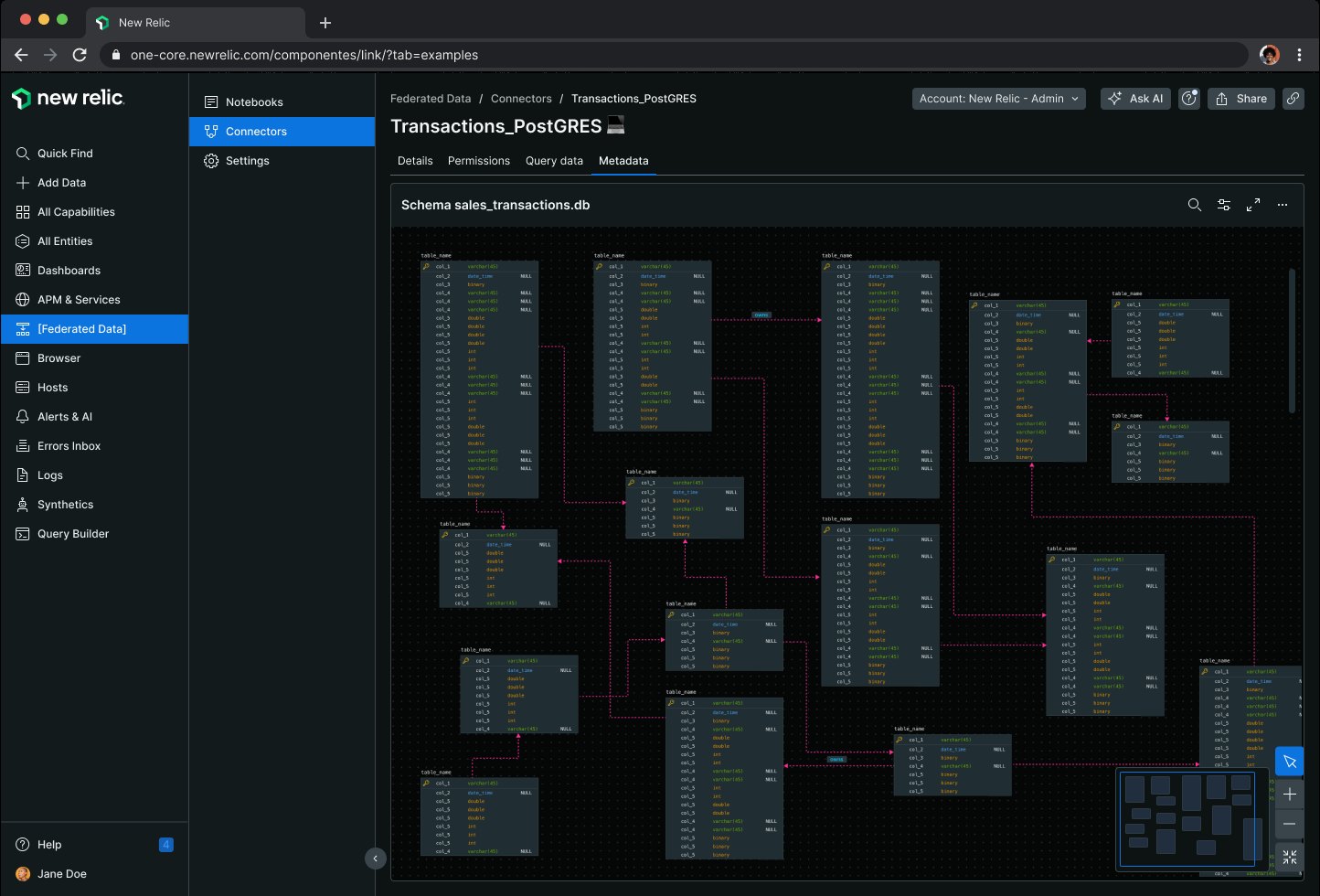
Schema map of the sales_transactions database: tables drawn as cards with their columns, joined by relationship lines, with a minimap in the corner FIG. 14 — SCHEMA MAP OF A CONNECTED DATABASE
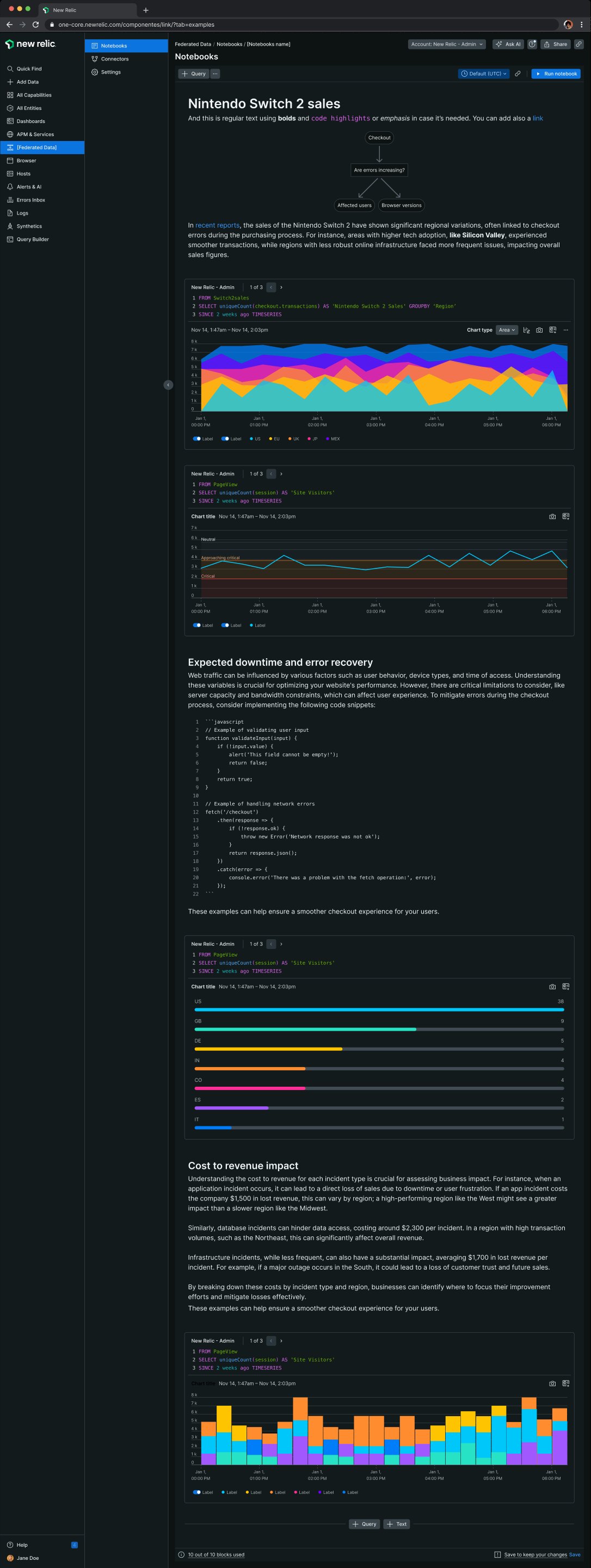
A notebook: prose, a decision diagram, NRQL queries with area and line charts, and a code block, in one scrolling document
FIG. 15 — A NOTEBOOK
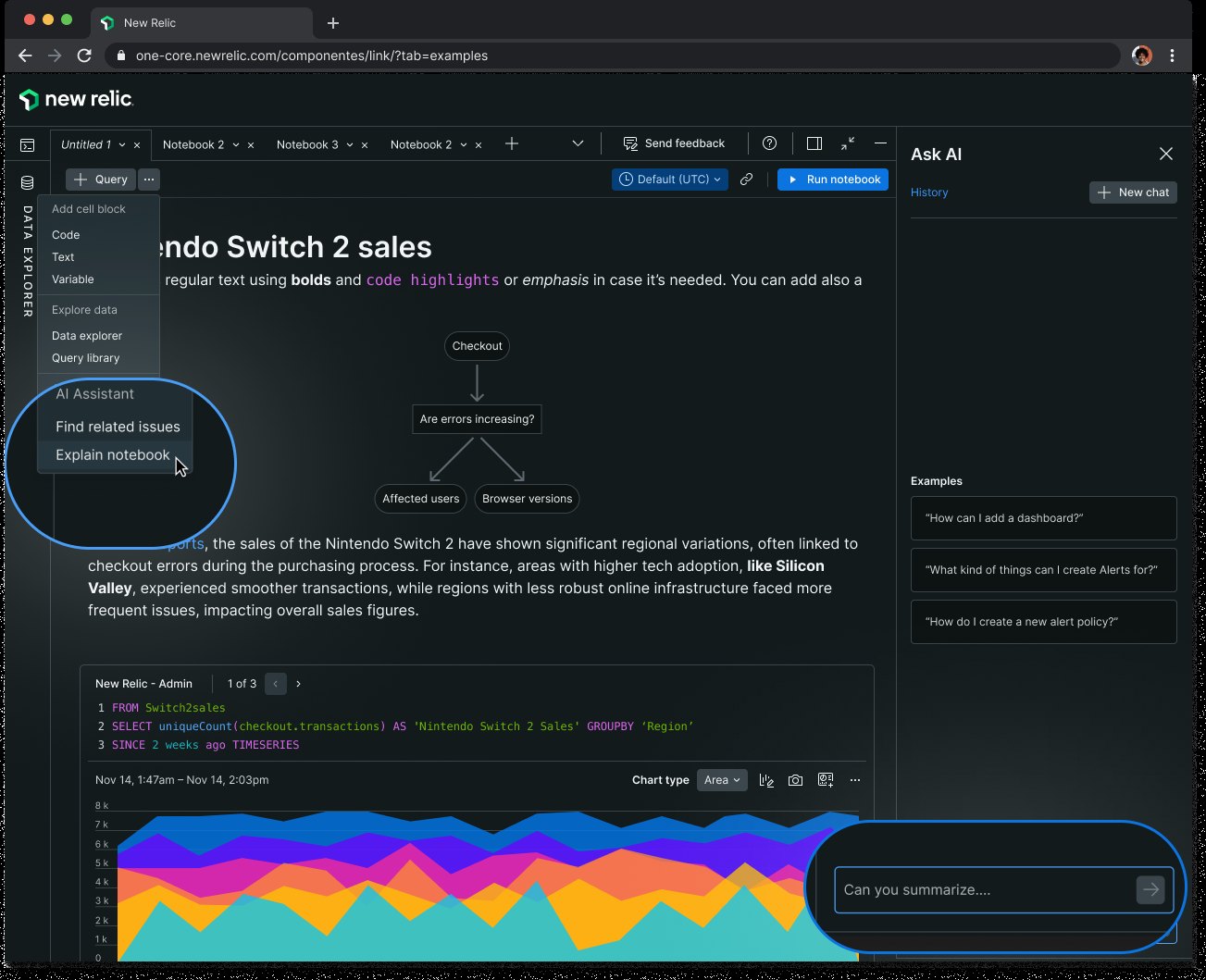
A notebook with Ask AI open: the query menu offers AI Assistant actions like Find related issues and Explain notebook, and a side panel waits on a prompt, Can you summarize
FIG. 16 — ASK AI, INSIDE A NOTEBOOK
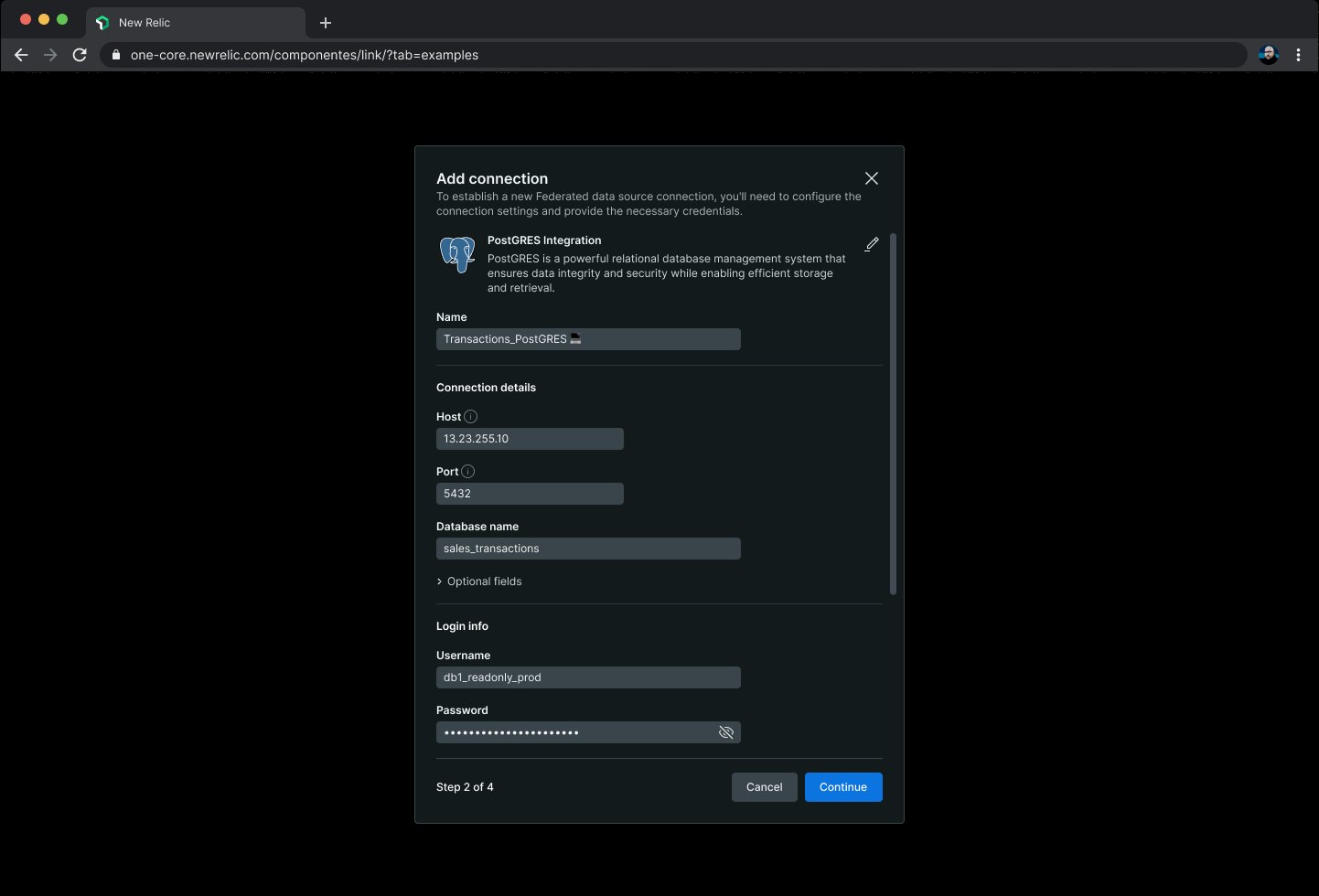
Add connection dialog, step 2 of 4: name, host, port, database and login details for a Postgres integration
FIG. 17 — ADD A CONNECTION, STEP 2 OF 4
04 · ATTENDEE HUB

One event hub, rebranded

One virtual-event template, rethemed for Nike, Slack Frontiers, Dreamforce and Dell Technologies World, from sign-in to sessions to messages, plus the theme editor that lets an organizer do it themselves.

CVENT · DESIGNER

COVID meant keeping people apart, and we were a business built on bringing them together. This was an effort to give non-technical organizers the confidence to build an online event that felt polished and on brand.
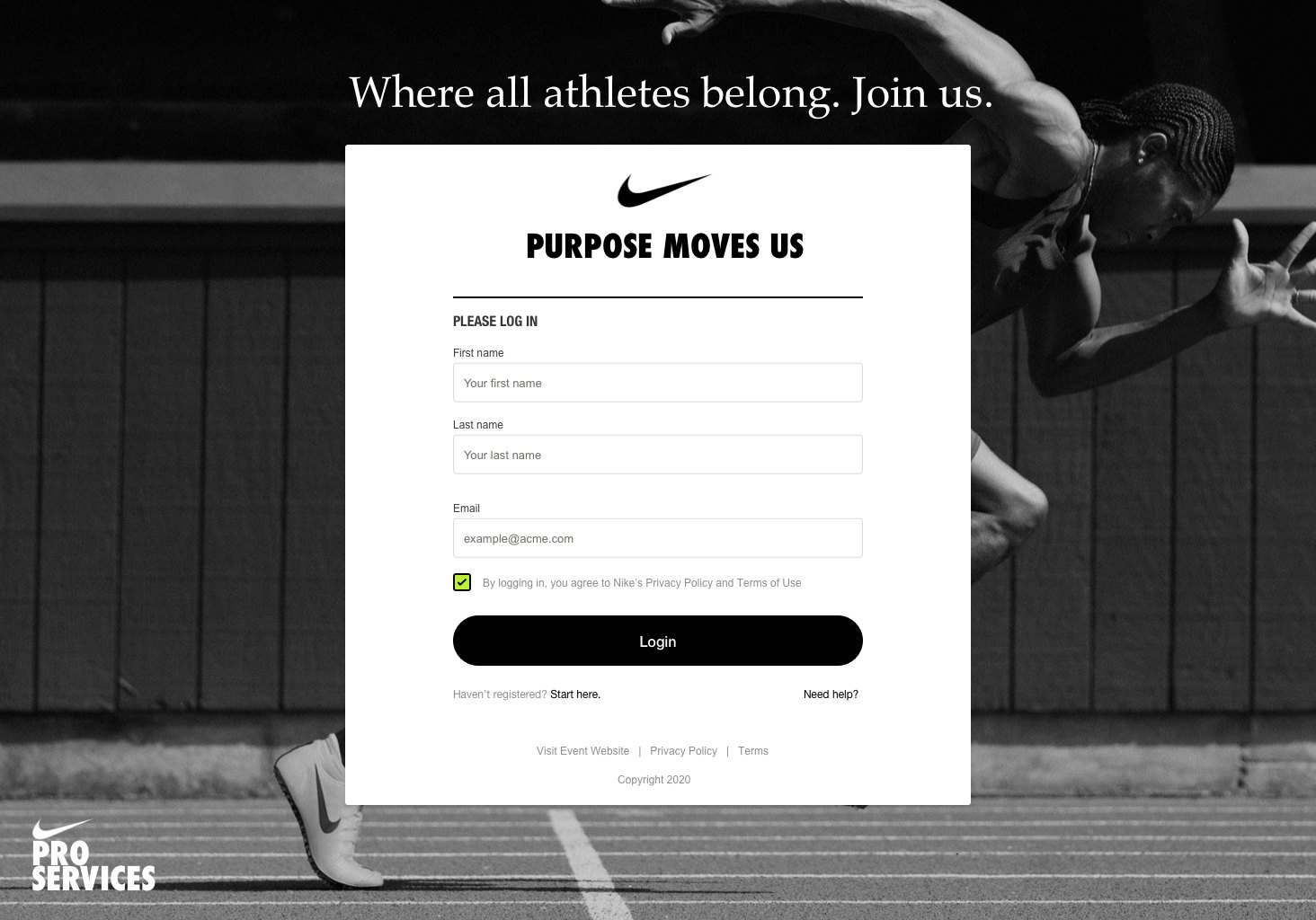
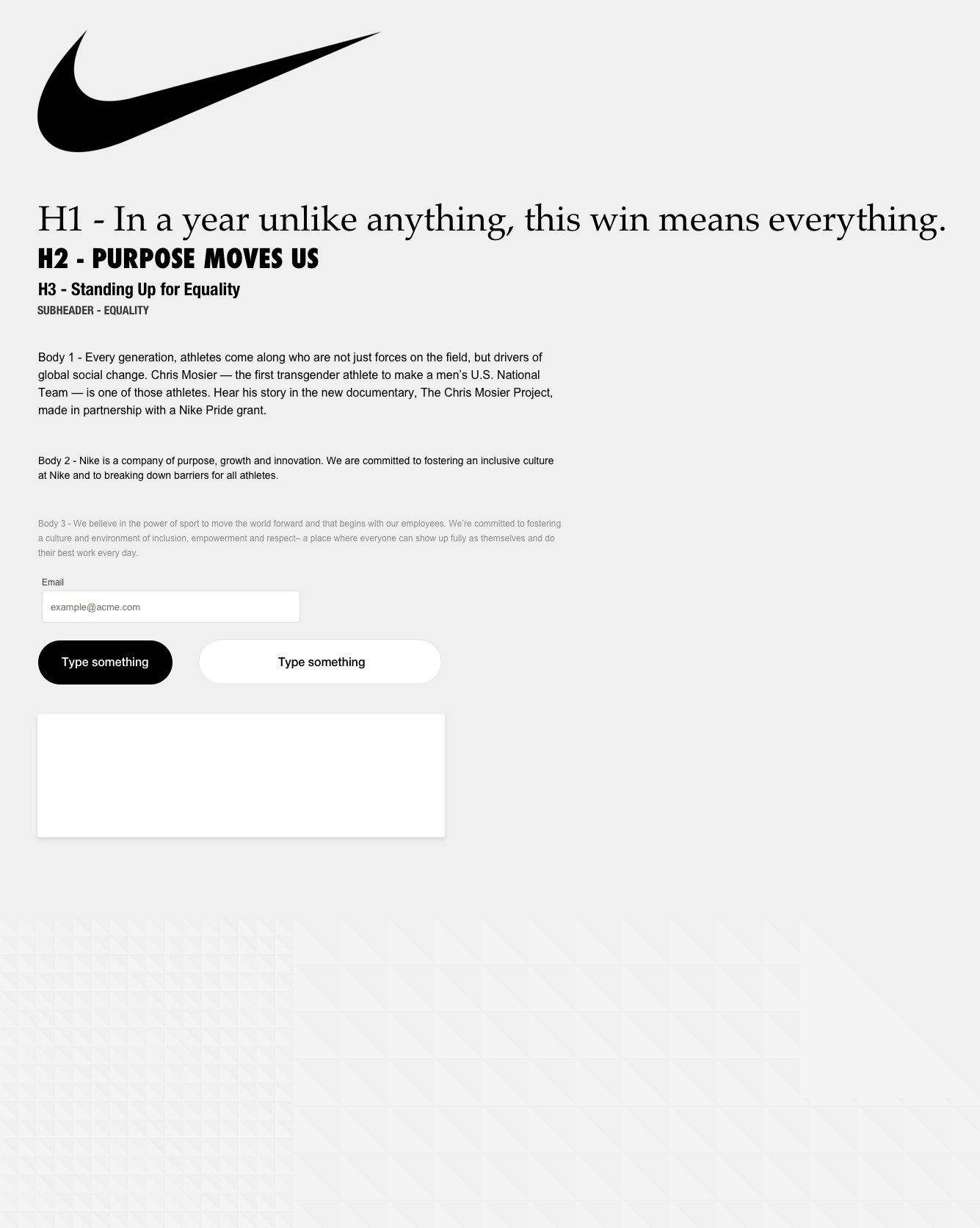
Nike sign-in: the Purpose Moves Us form over a black-and-white photo of a sprinter
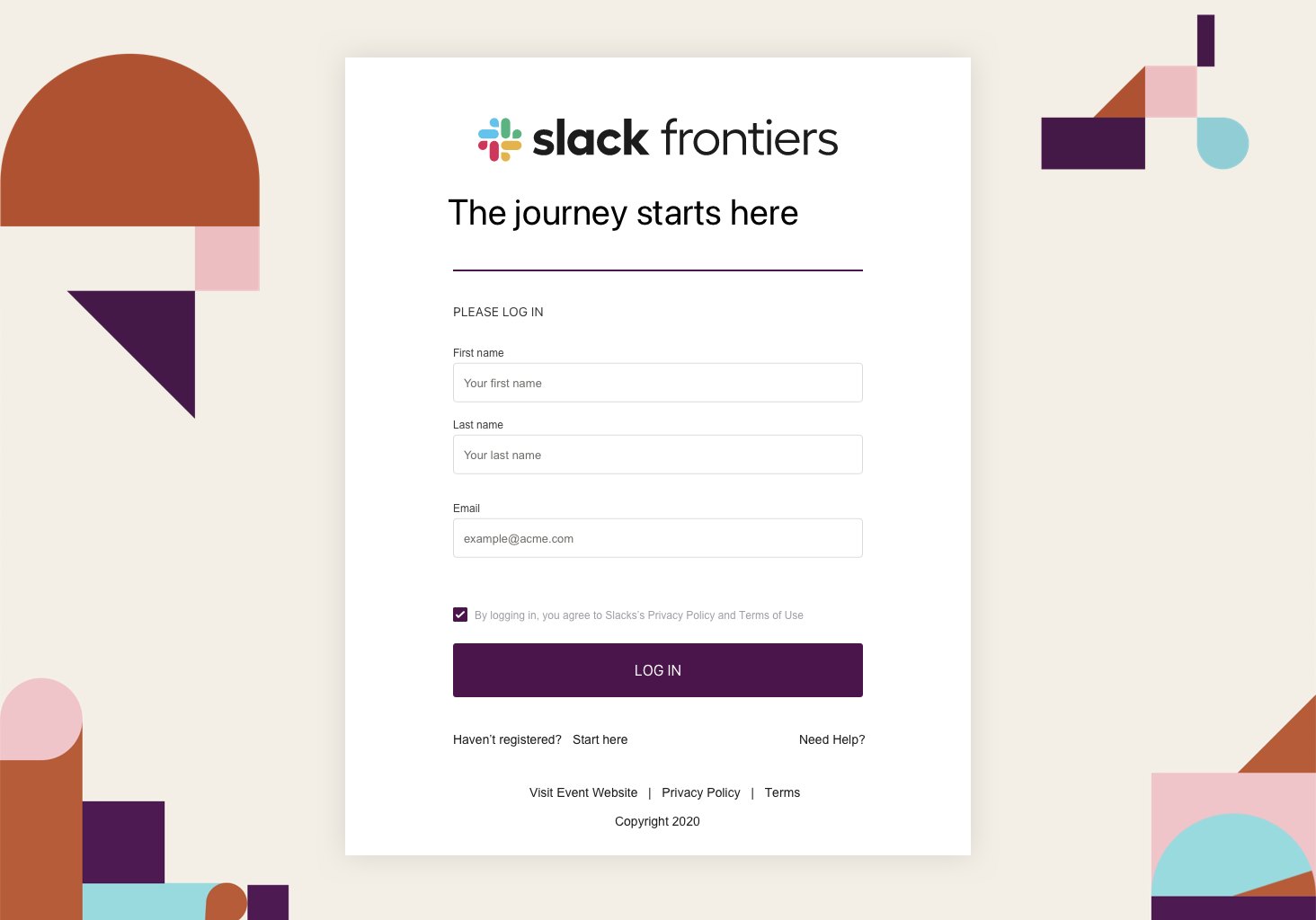
Slack Frontiers sign-in: the same form in aubergine, framed by Slack's geometric shapes
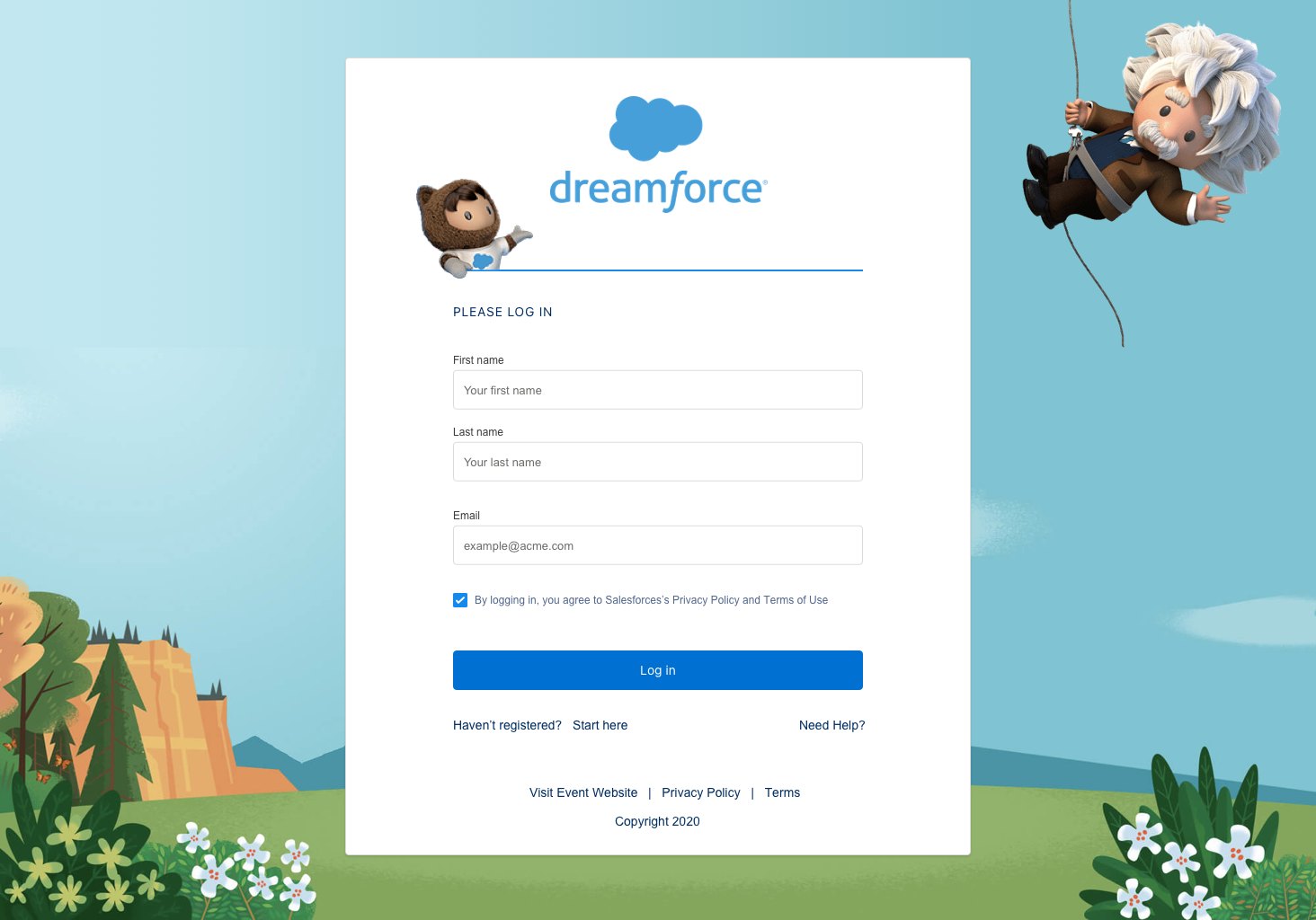
Dreamforce sign-in: the same form in a painted landscape with the Salesforce mascots
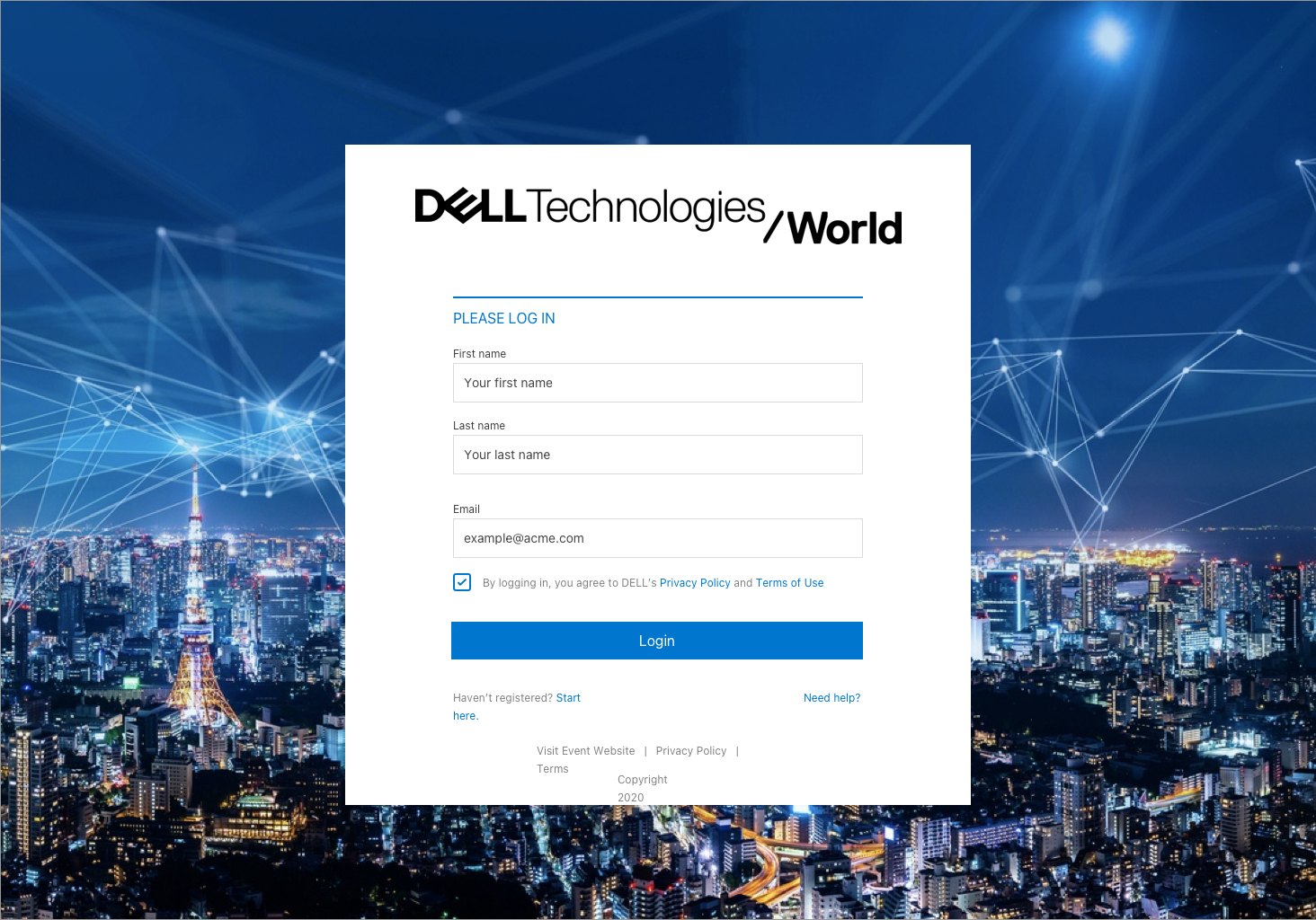
Dell Technologies World sign-in: the same form over a night-time city and network lines
FIG. 18 — ONE SIGN-IN, FOUR BRANDS: NIKE, SLACK, DREAMFORCE, DELL
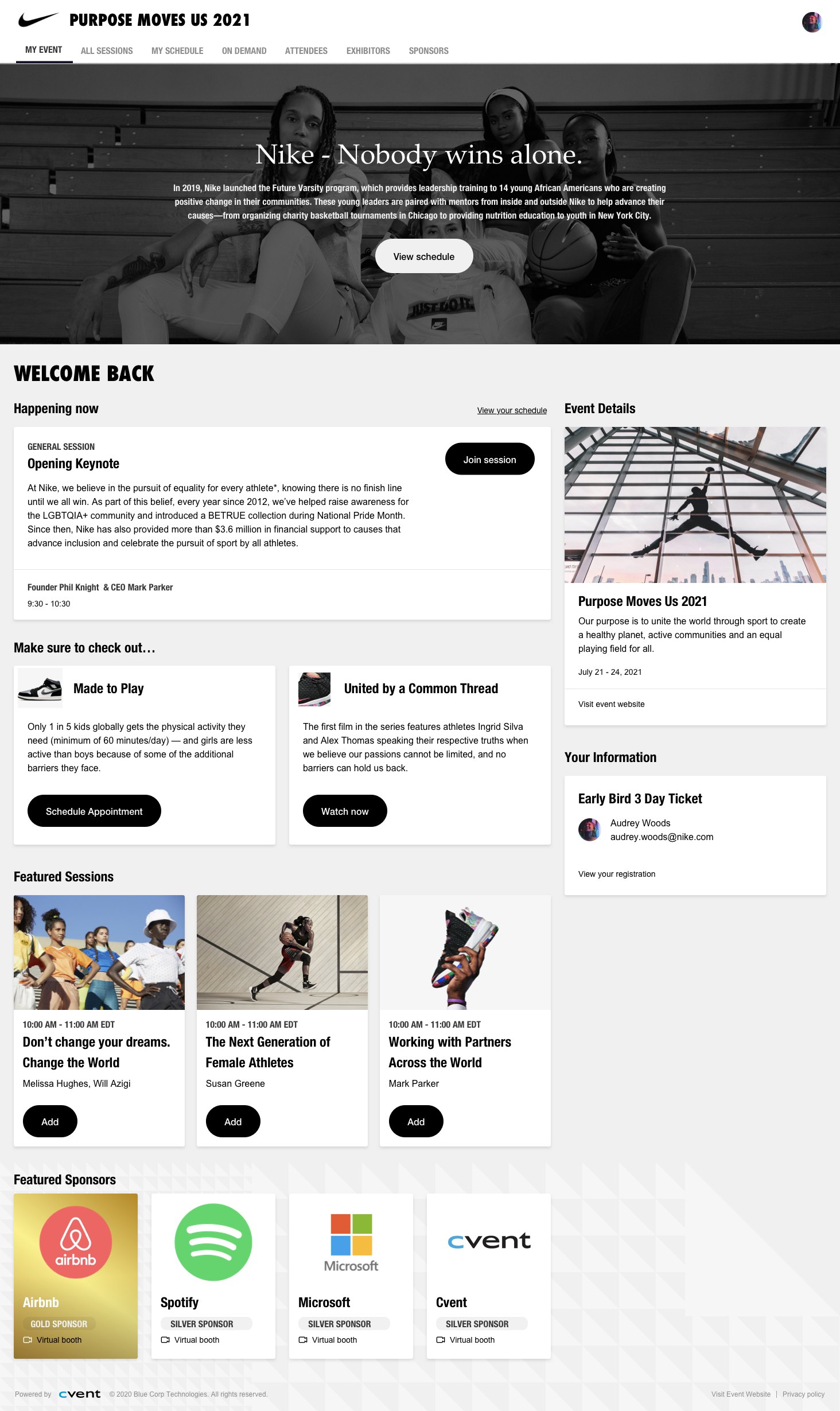
Nike event home: a Nobody Wins Alone hero, the session happening now, featured sessions and sponsors
FIG. 19 — NIKE · EVENT HOME
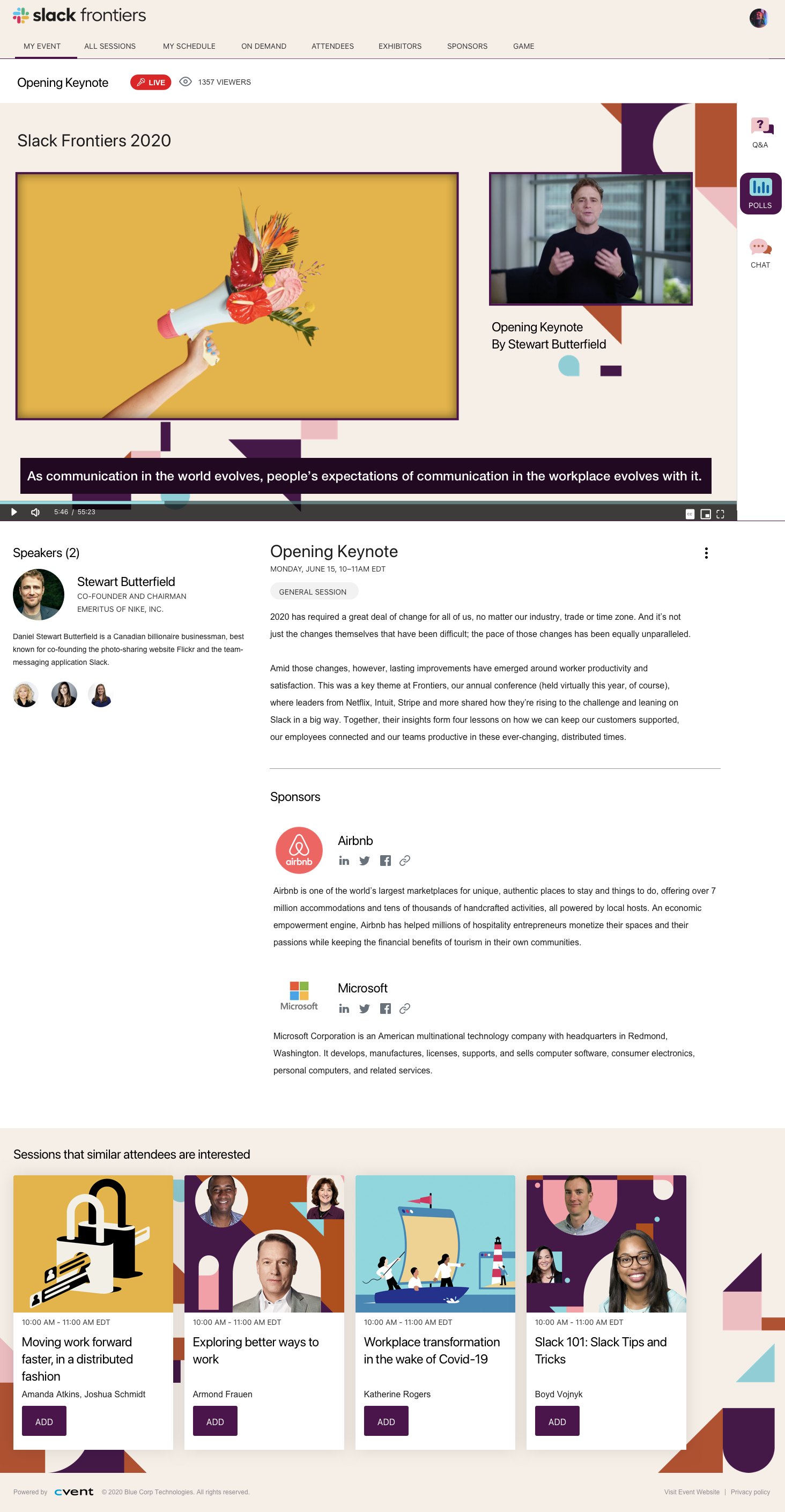
Slack Frontiers session page: the opening keynote video, speaker, description and sponsors
FIG. 20 — SLACK · SESSION
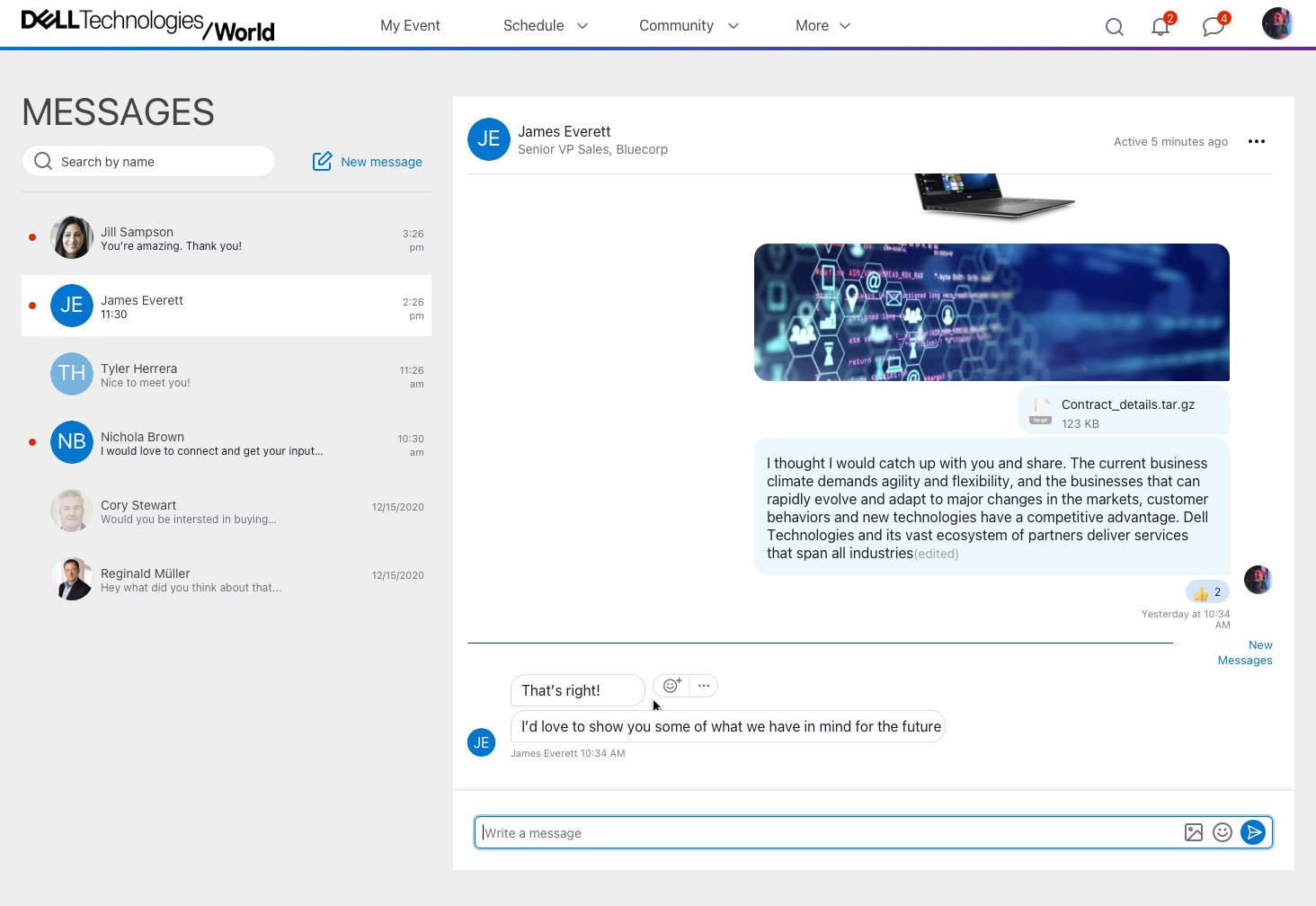
Dell Technologies World messages: a conversation list beside an open thread with an attachment
FIG. 21 — DELL · MESSAGES
Nike style sheet for the hub: headings, body copy, inputs and buttons in Nike's type
FIG. 22 — NIKE · TYPE AND BUTTONS
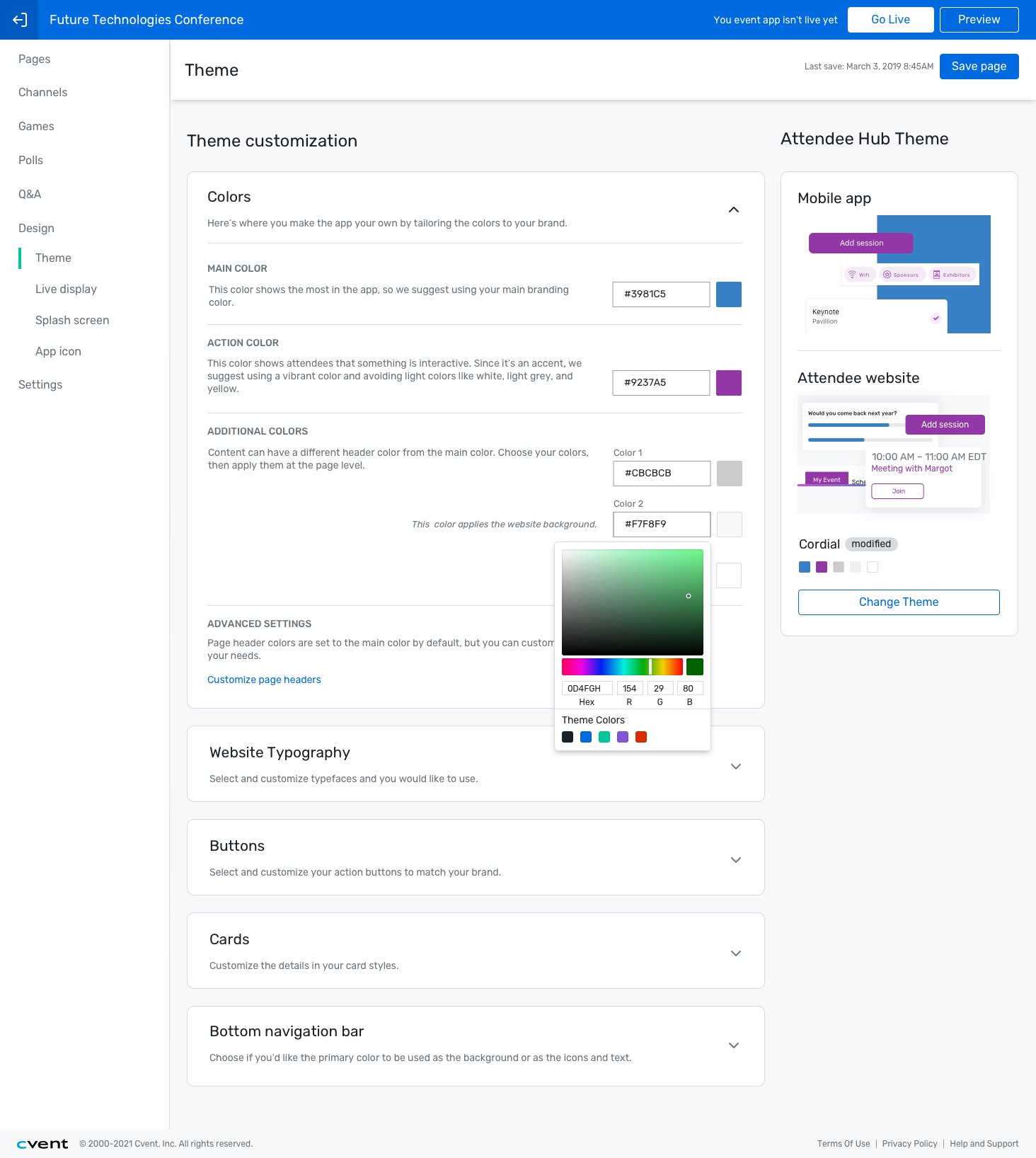
Theme editor: main, action and additional colours with a colour picker open, and live previews of the mobile app and attendee website FIG. 23 — THE THEME EDITOR BEHIND ALL OF THEM
05 · RFP OVERVIEW

One card, from draft to awarded

Event RFPs in the Cvent Supplier Network: one summary card that carries an event from draft to awarded, with rooms, collaborators and venues around it.

CVENT · DESIGNER

Event planners have some of the most stressful jobs there are. This was about giving them a modern experience: beautifully satisfying software to match how hard they work.
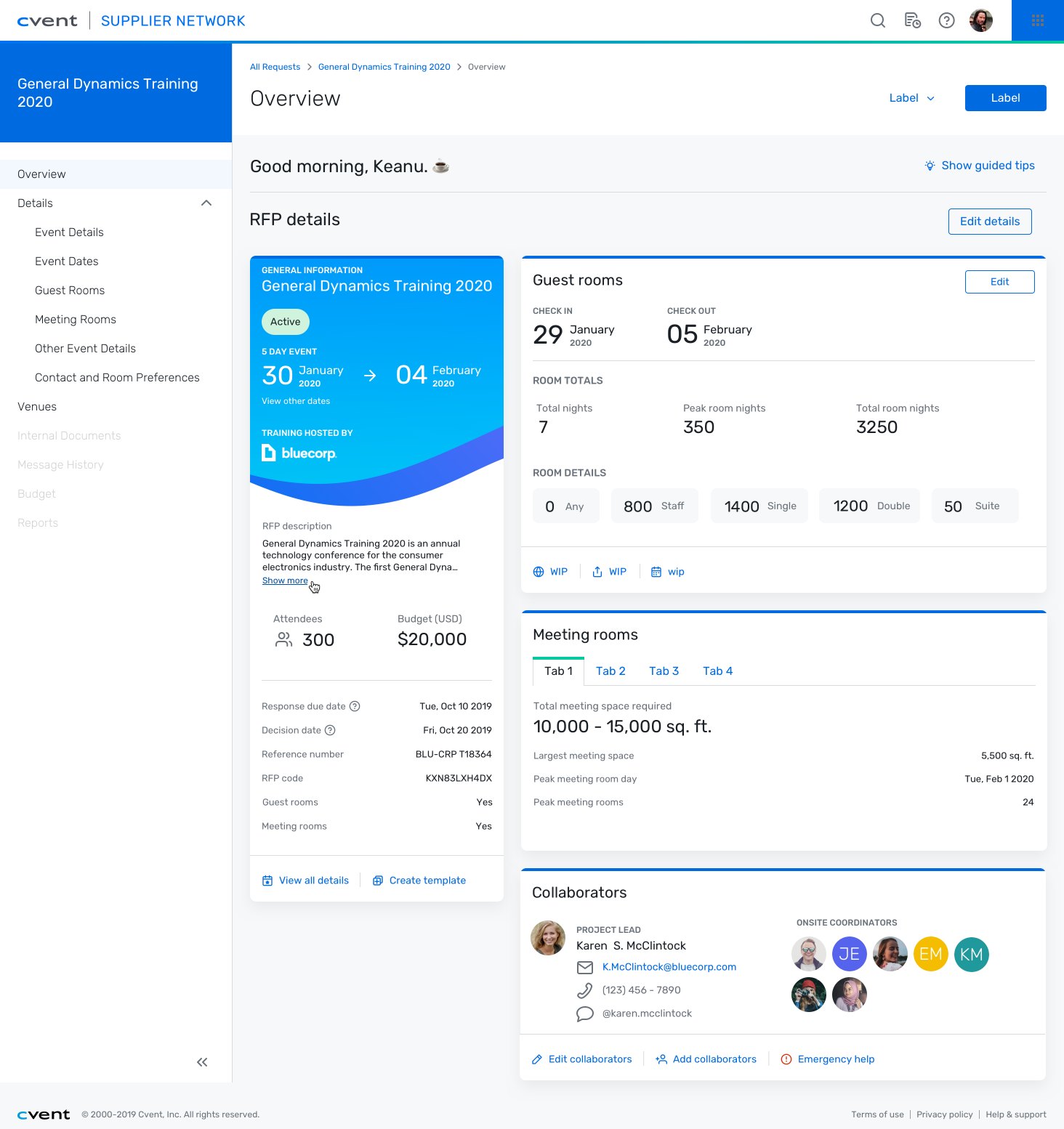
RFP overview for General Dynamics Training 2020: the summary card with dates, attendees and budget, beside guest rooms, meeting rooms and collaborators
FIG. 24 — RFP OVERVIEW
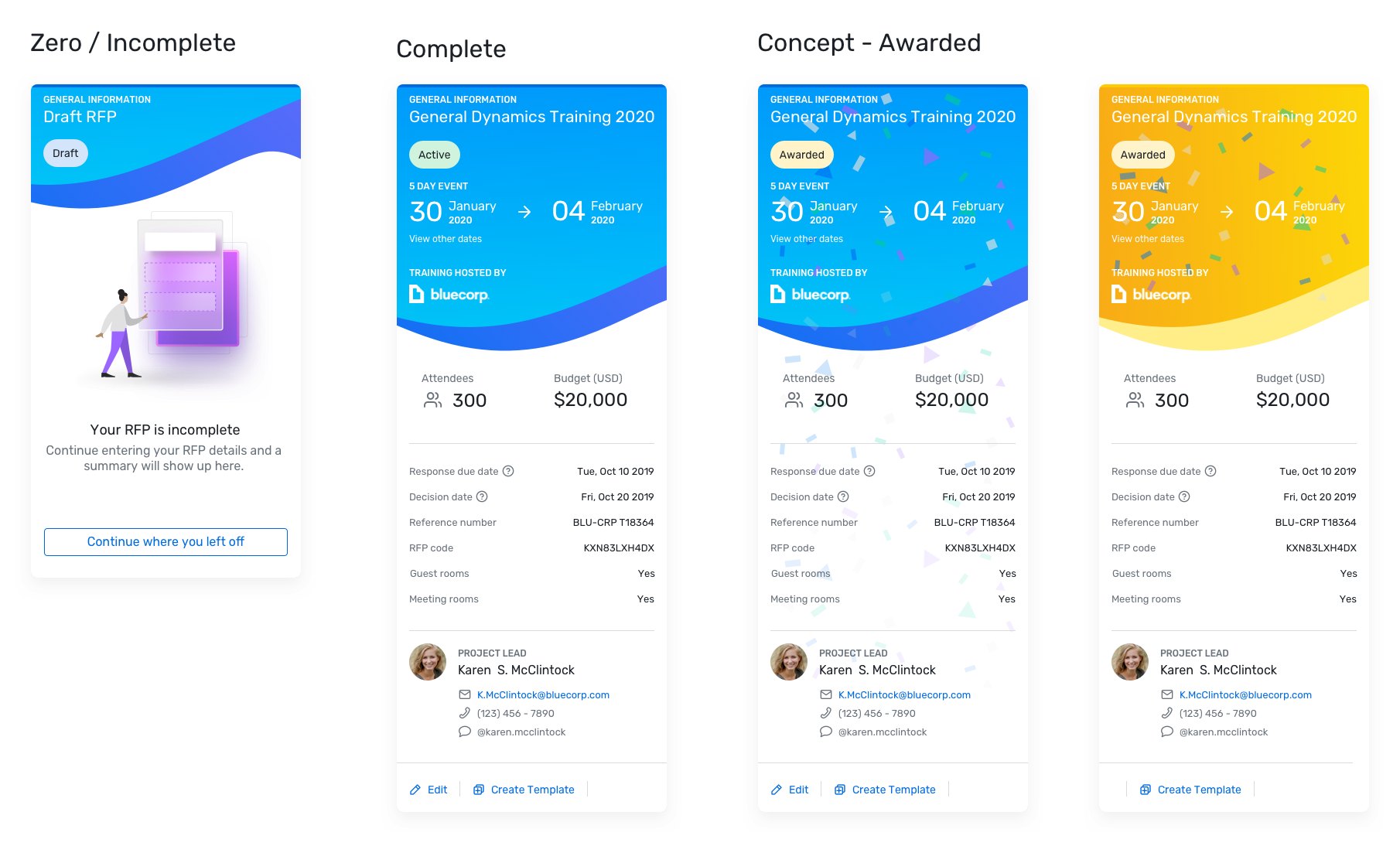
The summary card in four states: incomplete draft, active, and two concepts for awarded, one with confetti and one in gold
FIG. 25 — CARD STATES: DRAFT, ACTIVE, AWARDED
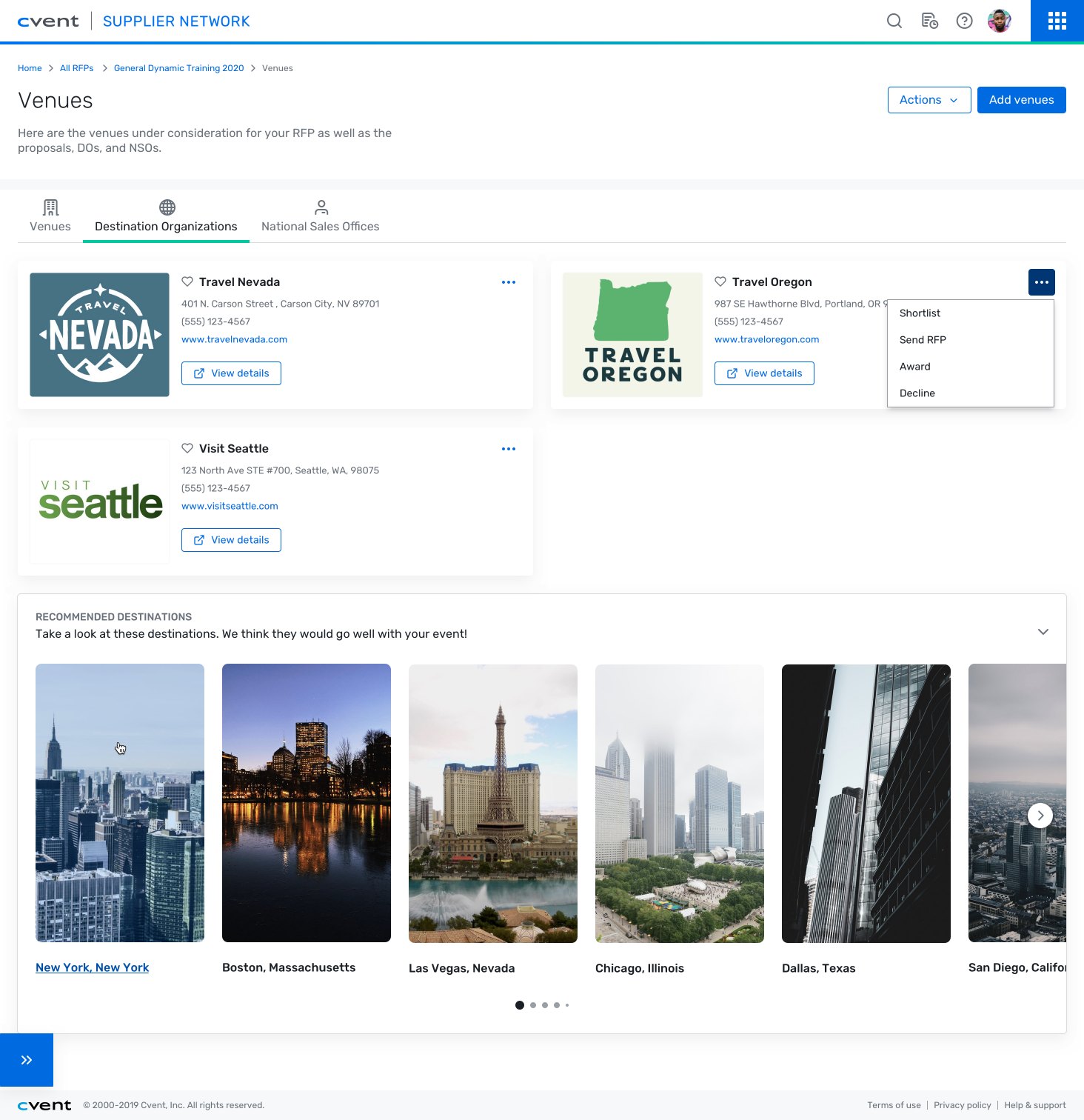
Venues: destination organizations for Nevada, Oregon and Seattle, and a row of recommended destination photos
FIG. 26 — VENUES AND DESTINATIONS
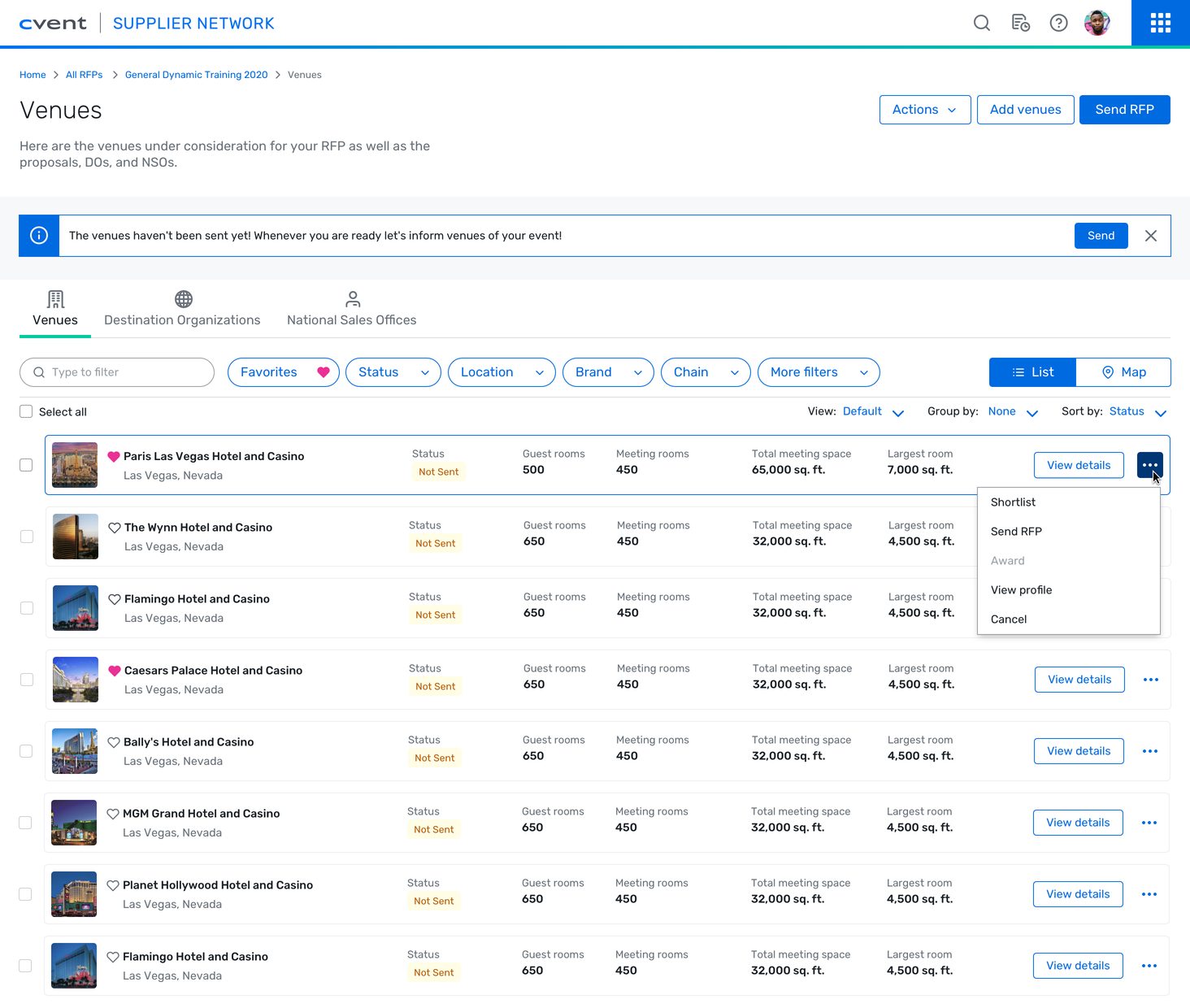
Venues list for General Dynamics Training 2020: a banner noting the venues haven't been sent yet, filters, and a row's menu open on Shortlist, Send RFP, Award, View profile and Cancel
FIG. 27 — VENUES, BEFORE THE RFP GOES OUT
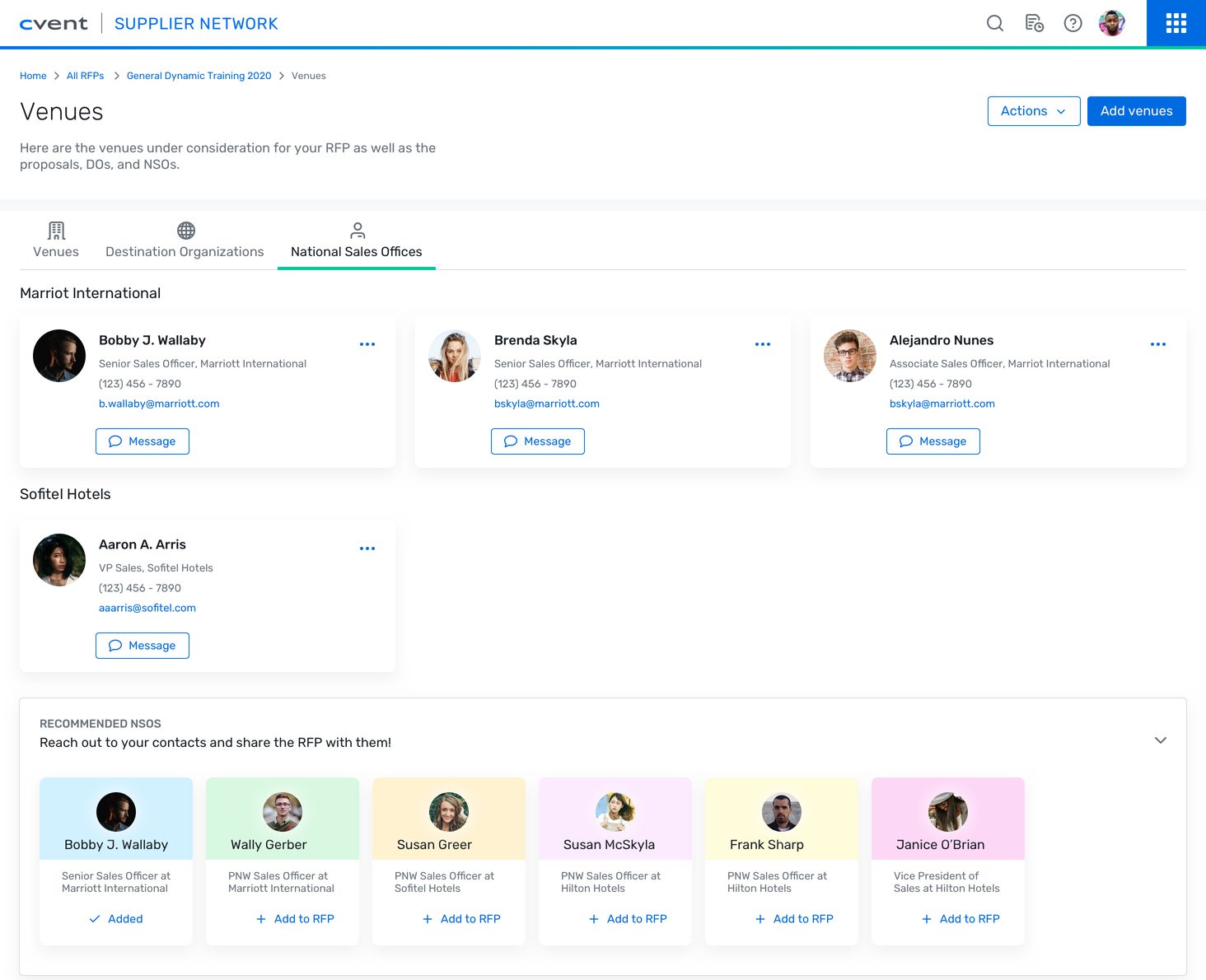
National Sales Offices: contact cards for Marriott and Sofitel sales officers with a Message button, and a row of recommended contacts to add to the RFP
FIG. 28 — NATIONAL SALES OFFICES
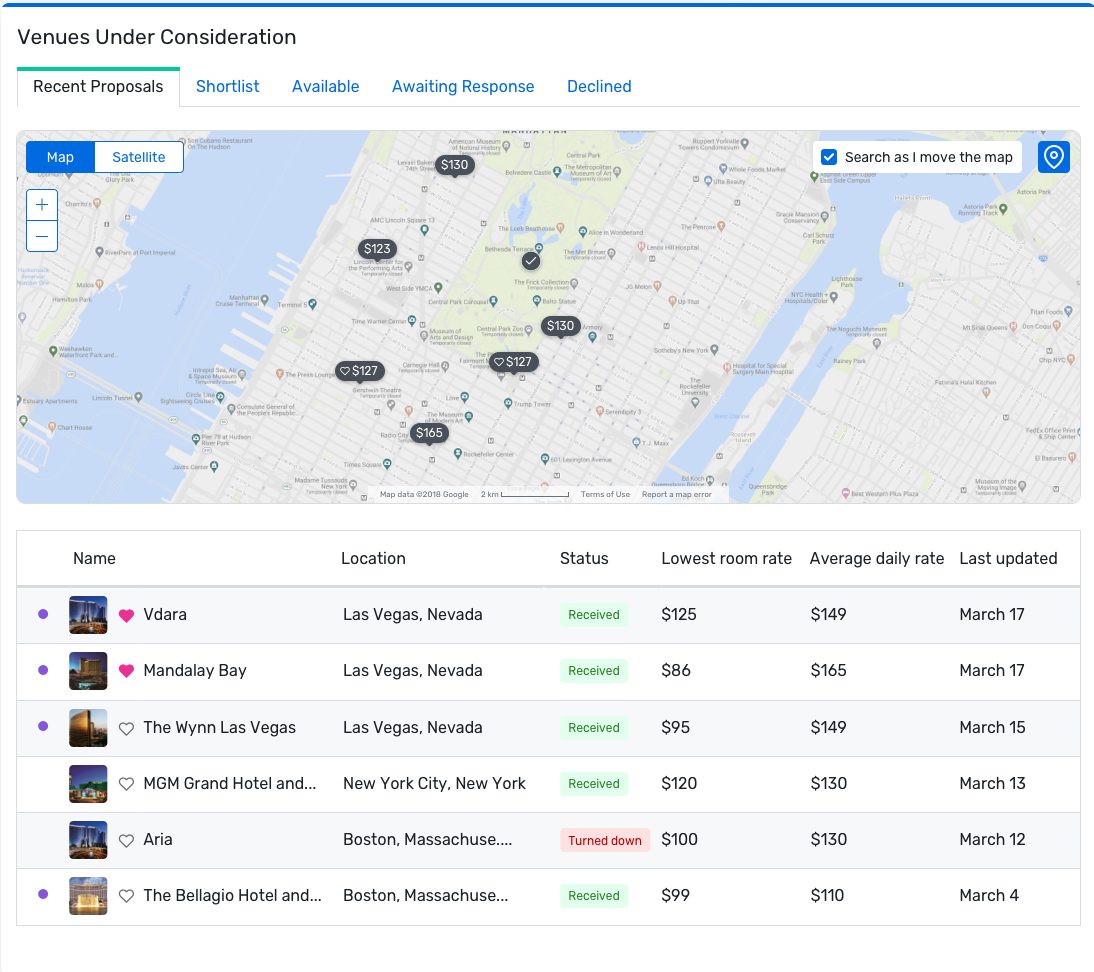
Venues under consideration: tabs for recent proposals, shortlist, available, awaiting response and declined, a map of rate pins, and a table of venues with status and rates
FIG. 29 — PROPOSALS ON A MAP
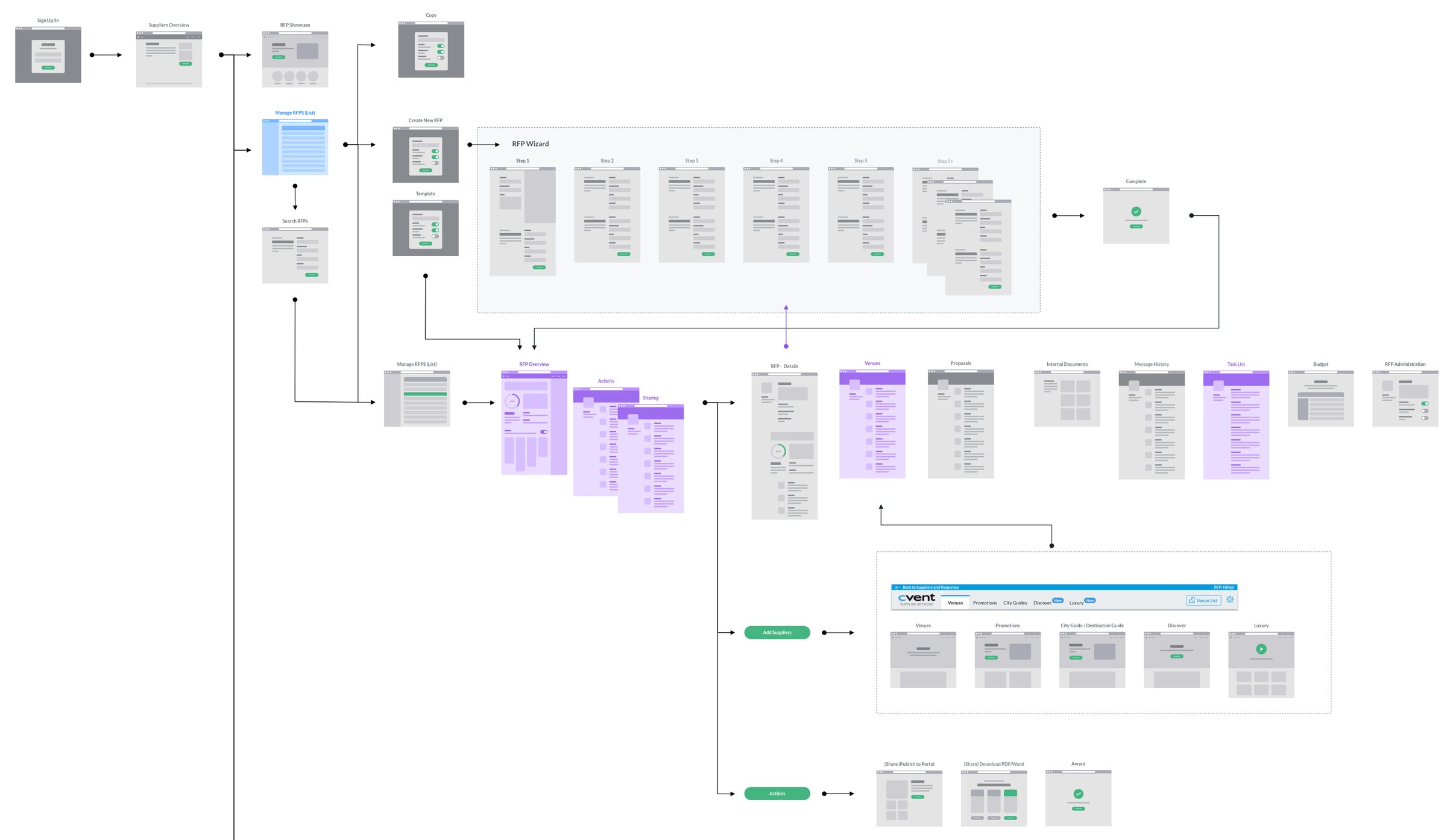
Information architecture: sign-in to the RFP list, a five-step RFP wizard, and the overview branching into details, venues, proposals, documents, messages, tasks and budget, with add-supplier and action flows below FIG. 30 — THE MAP OF THE WHOLE RFP FLOW
06 · DESIGN SYSTEMS

From foundations to the smallest interaction

A foundation first, then page template patterns, then even the small interactions.

COMSCORE · CVENT · NEW RELIC · DESIGNER

  1. A
    A foundation Comscore’s Forge: colours, type, components and data visualization, set down as a system and put to work in Media Ratings.
  2. B
    Page template patterns Cvent’s overview blueprint: a page broken into regions and cards, with room for a cover illustration and guided tips.
  3. C
    Even the small interactions Steppers for Cvent and sliders for New Relic, prototyped as working interactions.
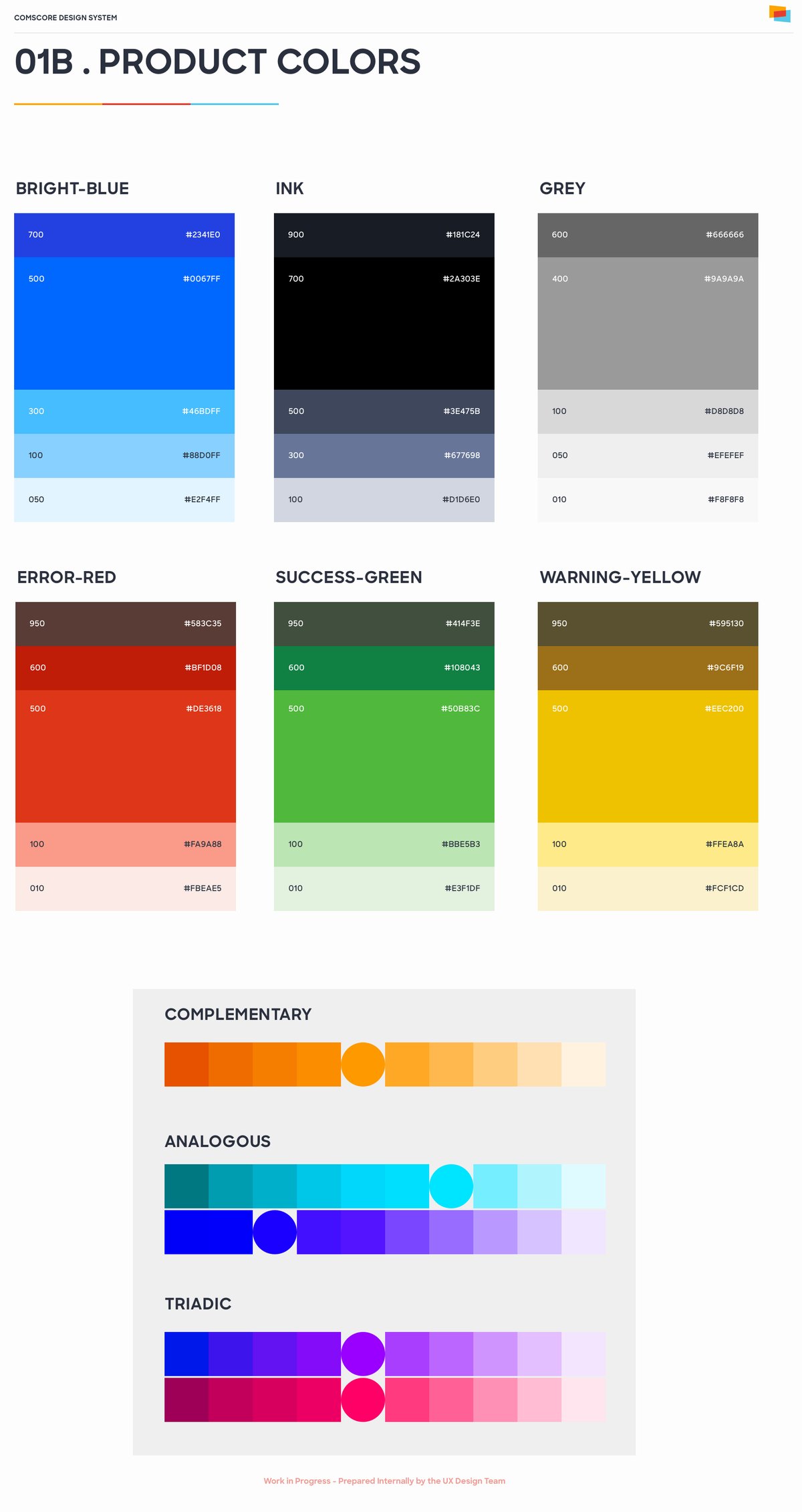
Comscore design system product colours: bright blue, ink, grey, error red, success green and warning yellow ramps, with complementary, analogous and triadic studies
FIG. 31 — COMSCORE · PRODUCT COLOURS
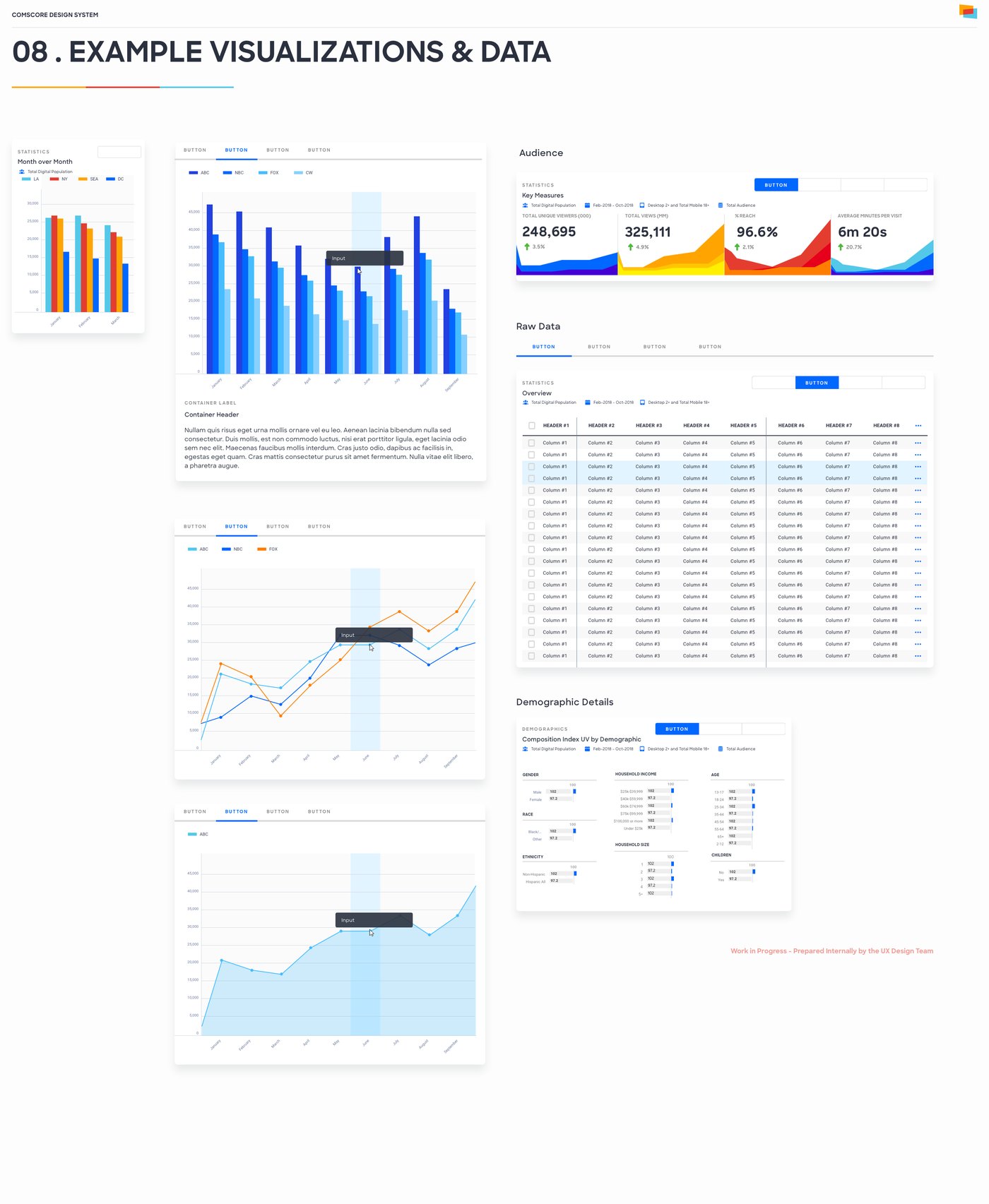
Comscore design system example visualizations: grouped bars, lines and areas with a hover state, key-measure tiles, a raw data table and demographic details
FIG. 32 — COMSCORE · VISUALIZATIONS AND DATA
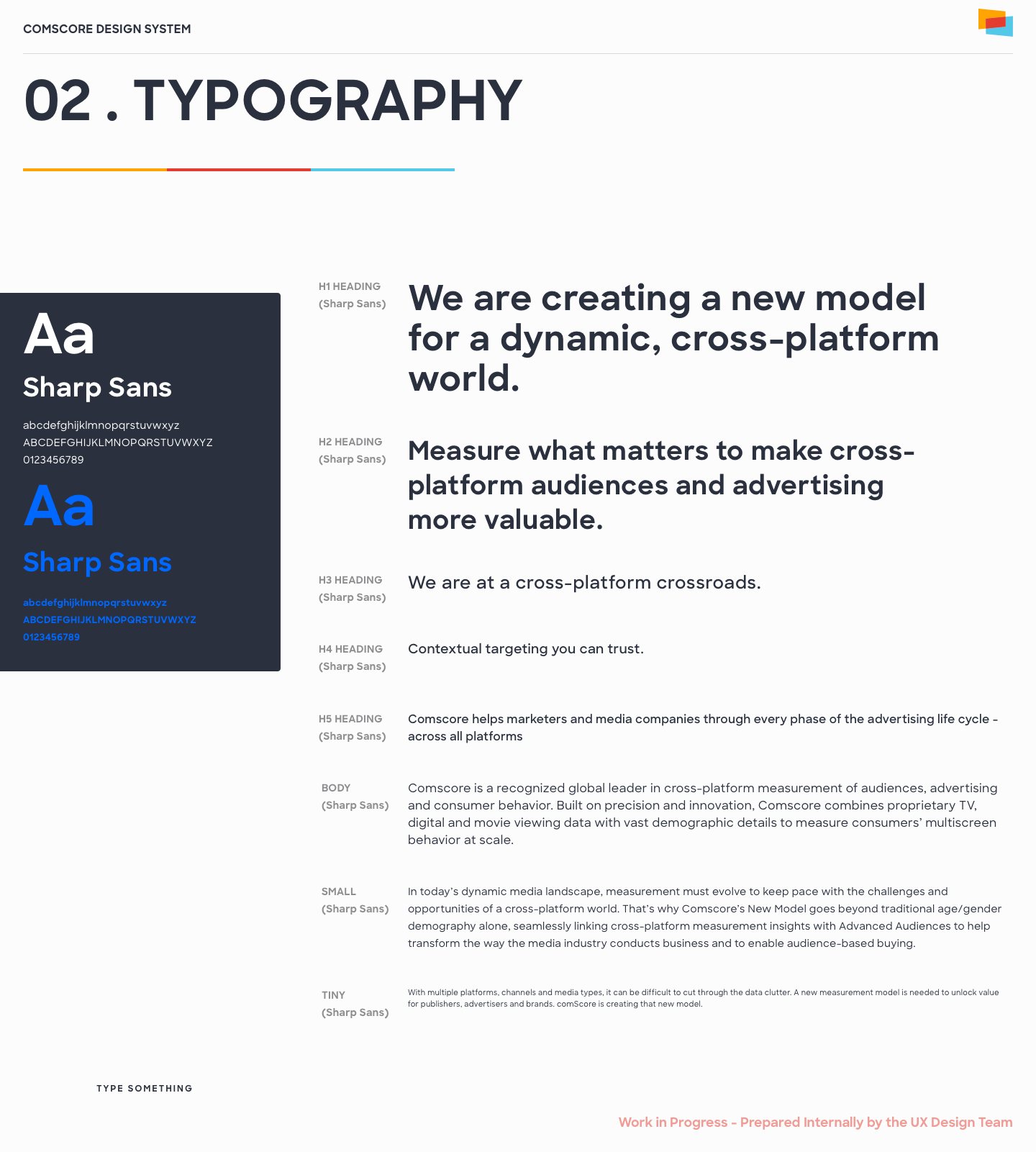
Comscore design system typography: Sharp Sans specimens in black and blue, beside a ramp of headings and body sizes set in sample copy
FIG. 33 — COMSCORE · TYPOGRAPHY
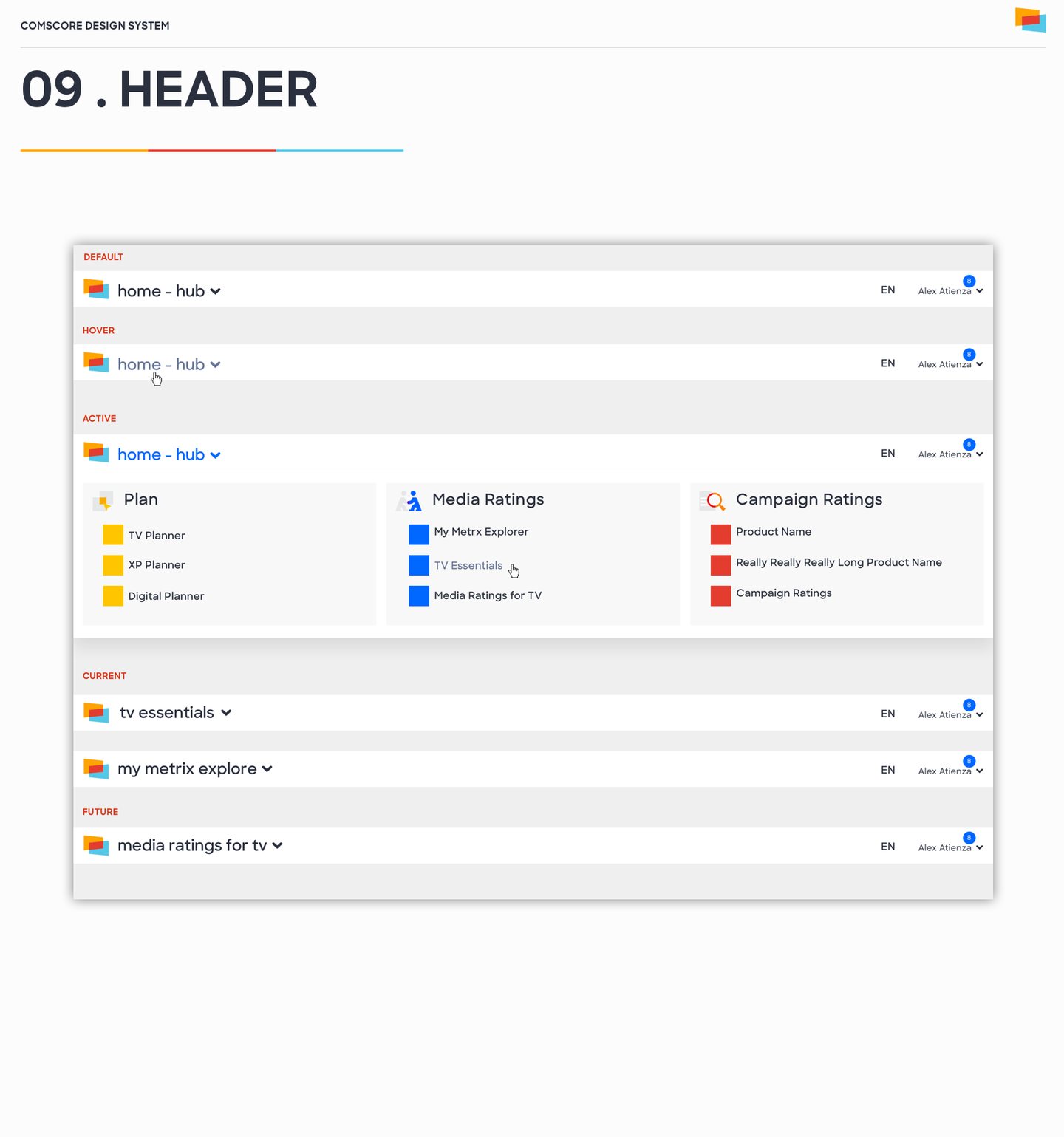
Comscore global header in its states: default, hover and active, a product switcher open on Plan, Media Ratings and Campaign Ratings, then the same header for three products
FIG. 34 — COMSCORE · GLOBAL HEADER
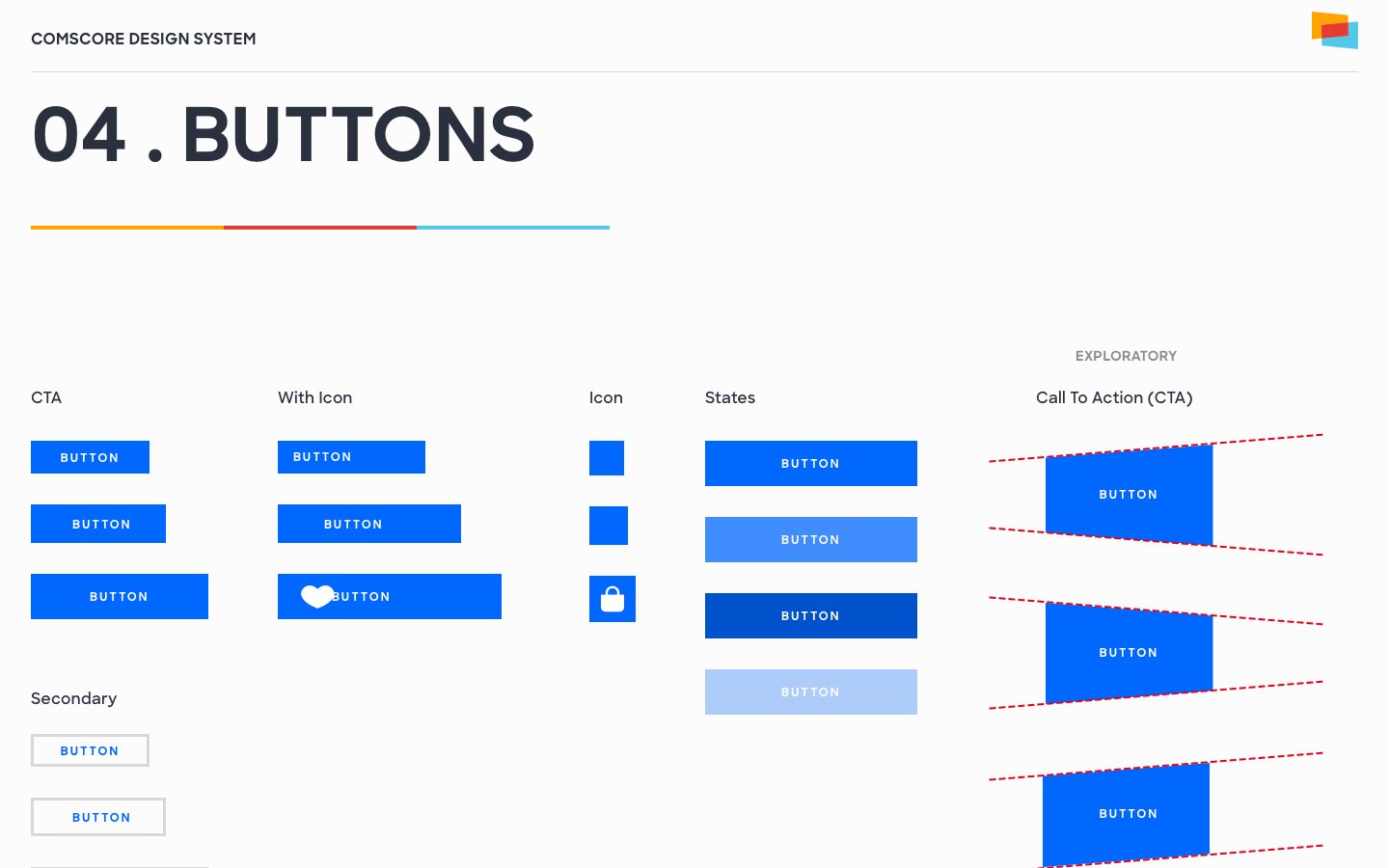
Comscore buttons: call to action, with icon, icon only, states and secondary, plus an exploratory angled call to action
FIG. 35 — COMSCORE · BUTTONS
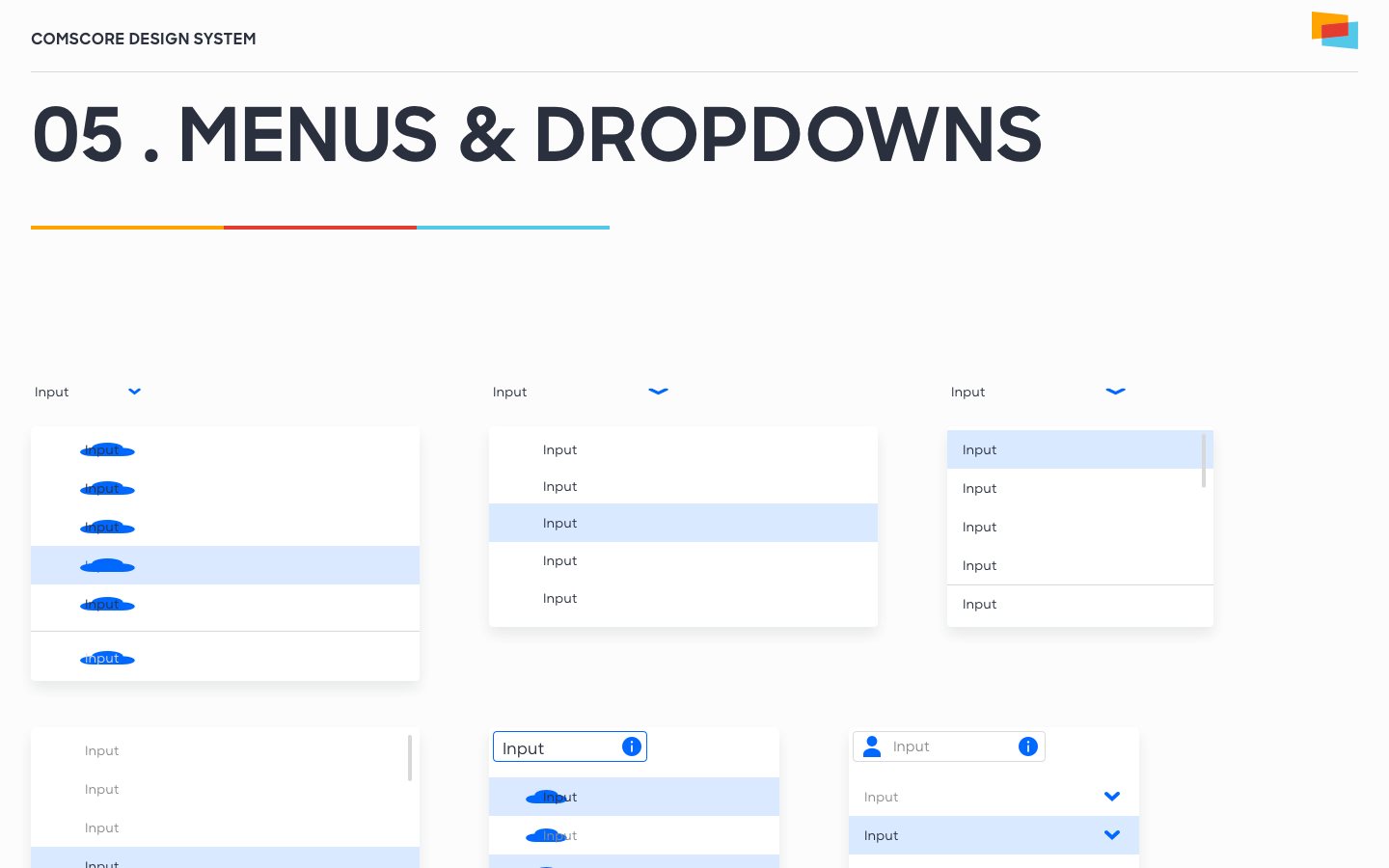
Comscore menus and dropdowns: open lists with hover and selected rows, a searchable input and a nested menu
FIG. 36 — COMSCORE · MENUS
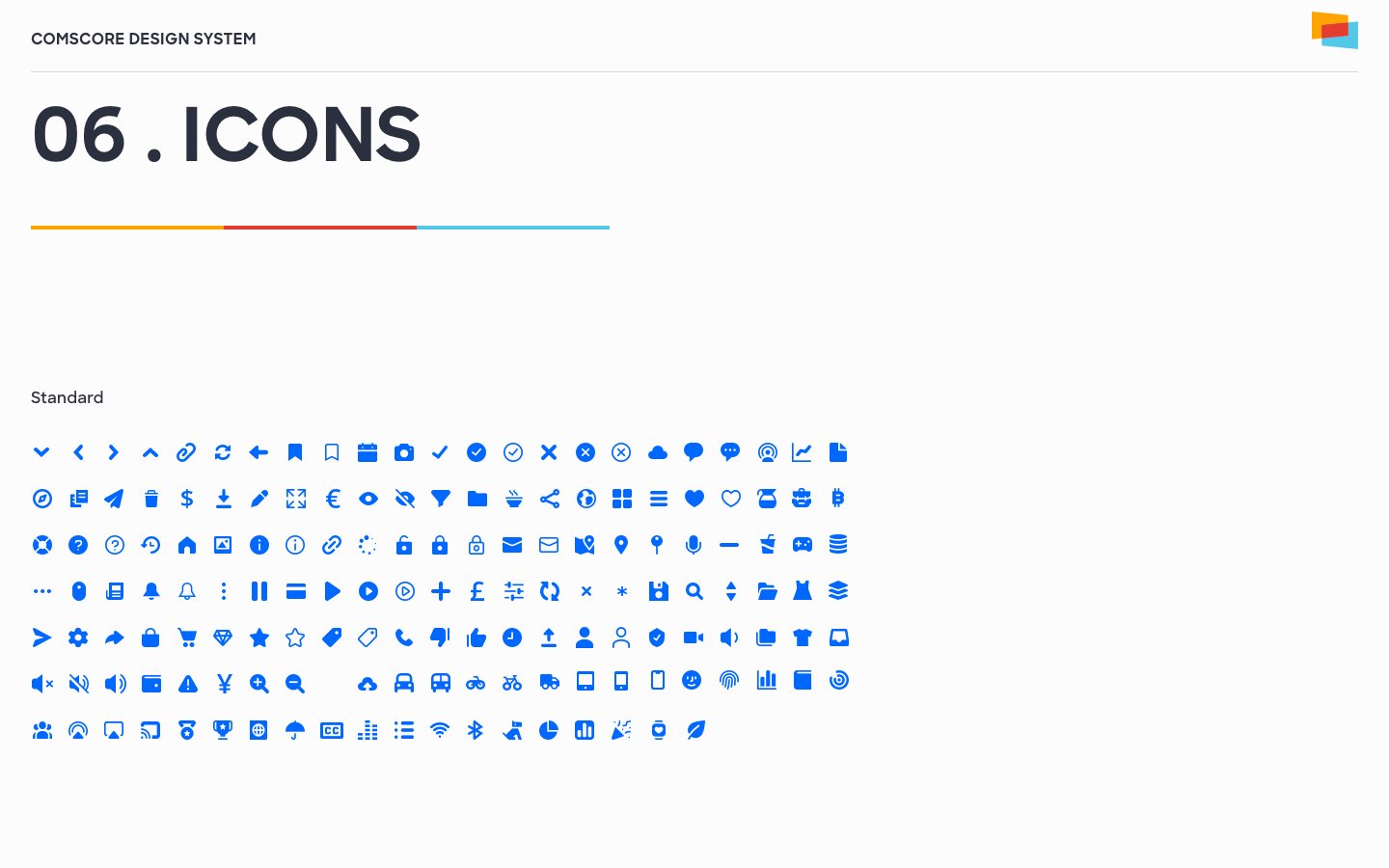
Comscore standard icon set in blue: navigation, actions, files, media, charts and status glyphs on a grid
FIG. 37 — COMSCORE · ICONS
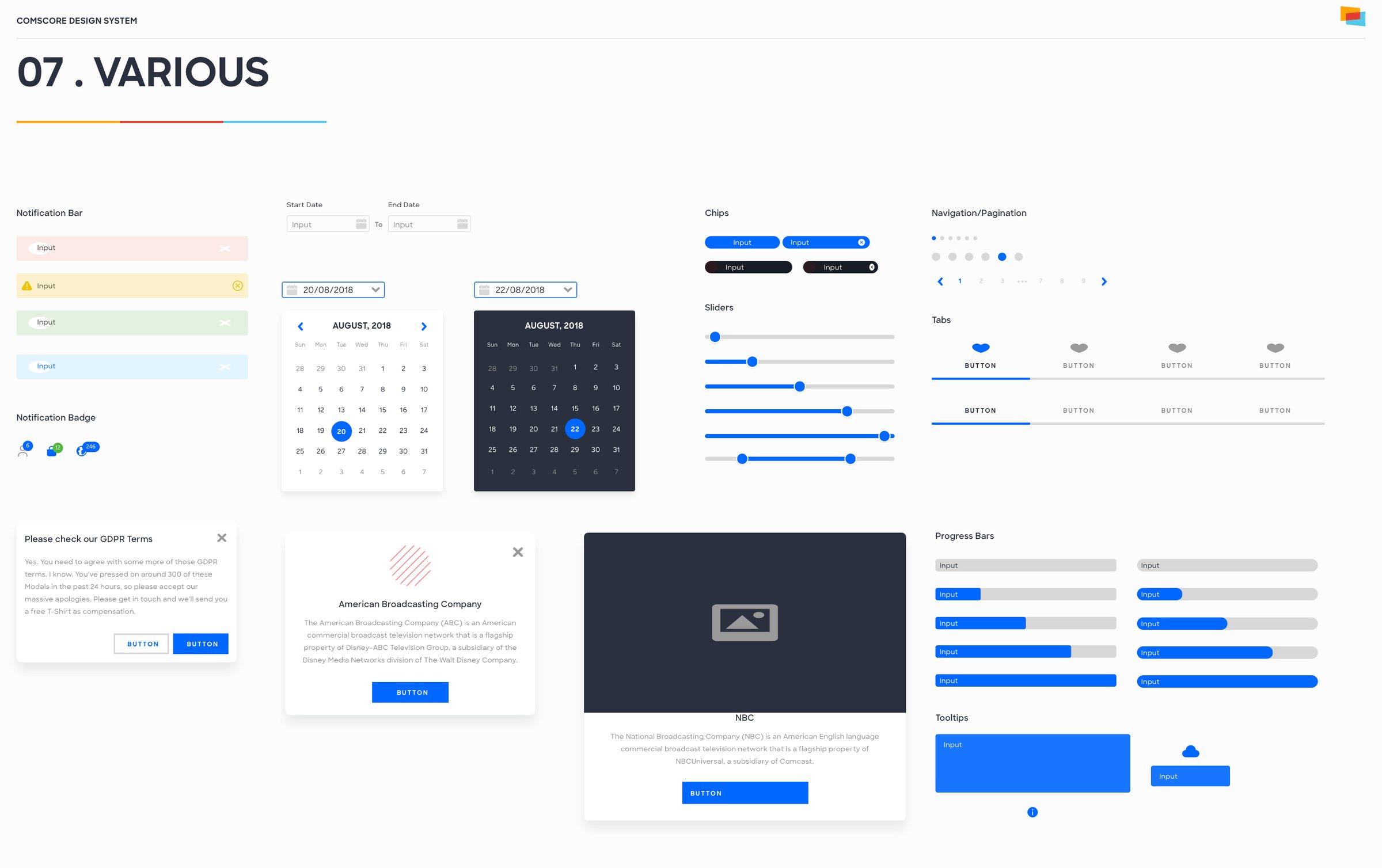
Comscore components sheet: notification bars and badges, date pickers in light and dark, chips, sliders, pagination, tabs, cards, a consent dialog, progress bars and tooltips
FIG. 38 — COMSCORE · THE REST OF THE KIT
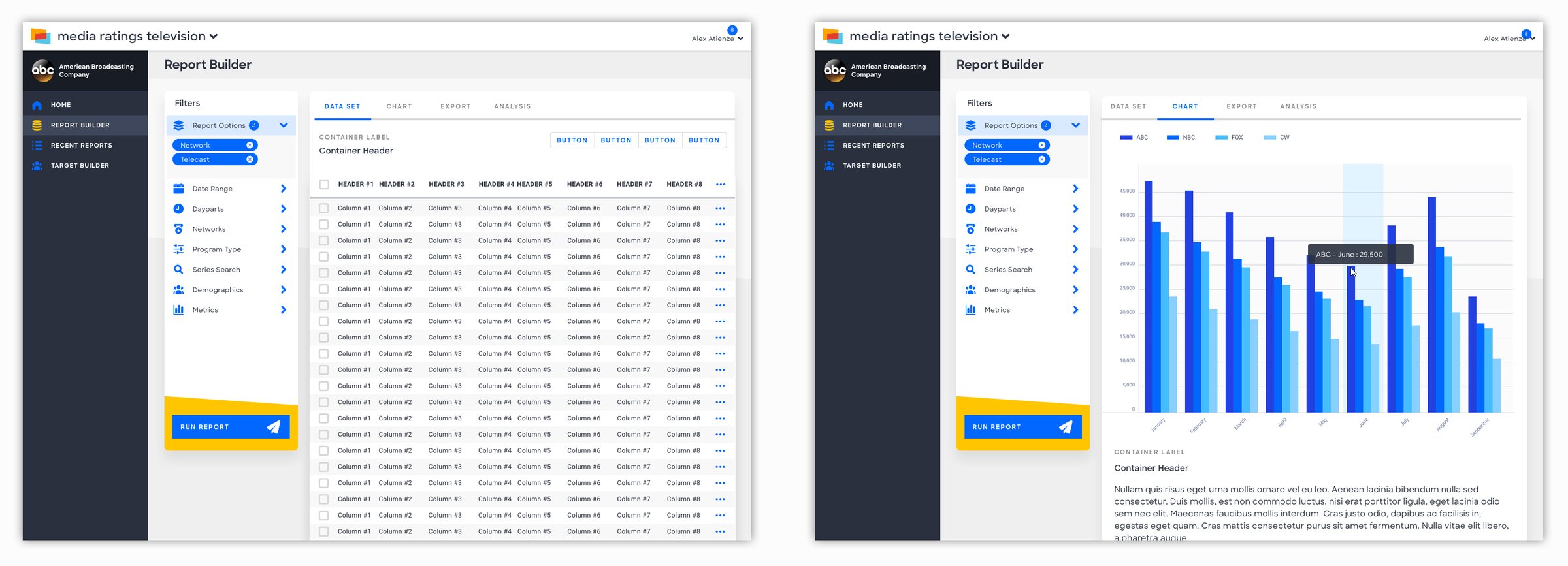
Media Ratings Television built from the system: a Report Builder with filters and a data table, and the same report switched to a grouped bar chart with a hover tooltip FIG. 39 — THE SYSTEM AT WORK: MEDIA RATINGS REPORT BUILDER
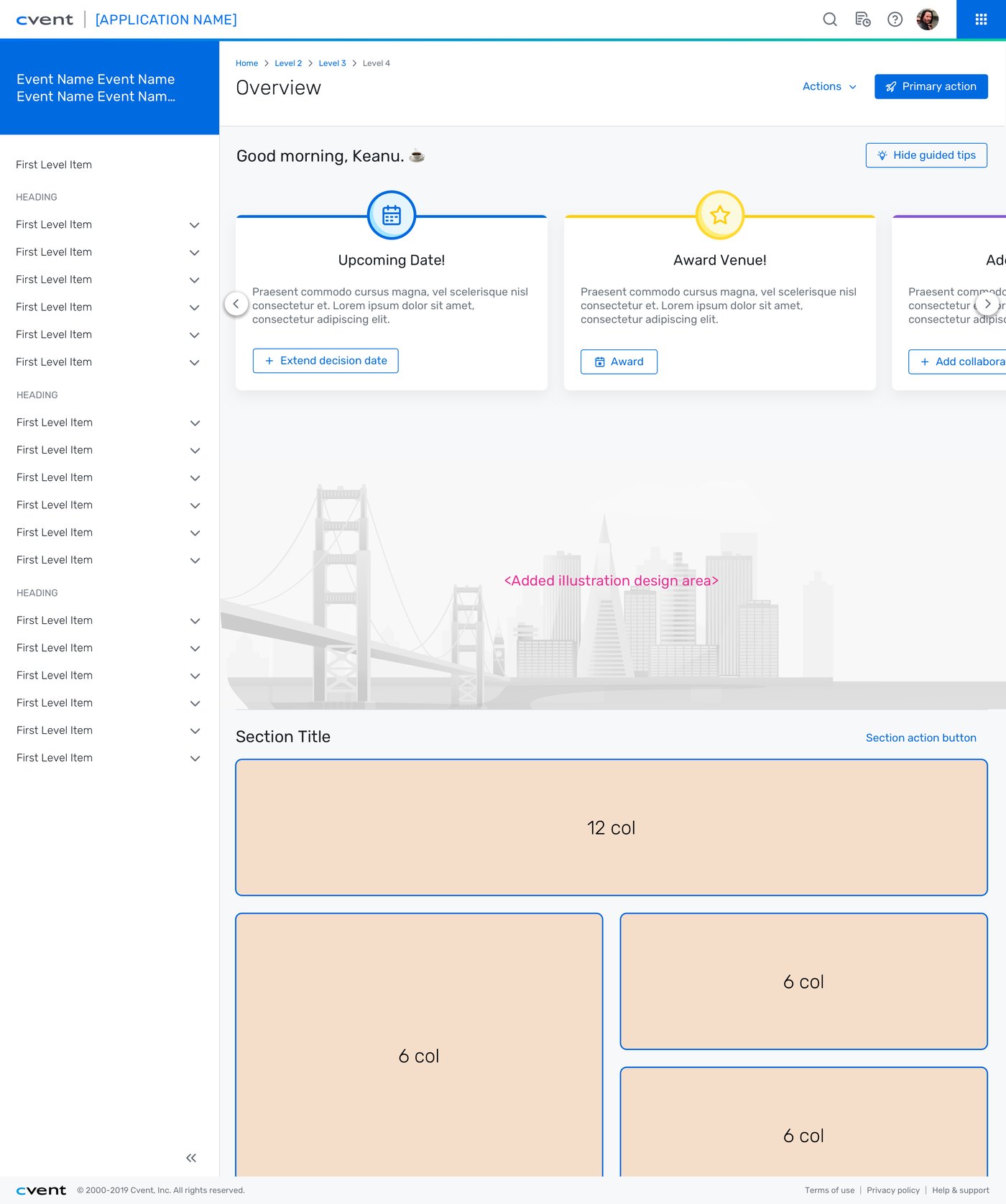
Cvent overview template: a greeting, a row of guided tip cards, a cover illustration of a city skyline, and a section of cards on a column grid
FIG. 40 — CVENT · OVERVIEW TEMPLATE, WITH GUIDED TIPS
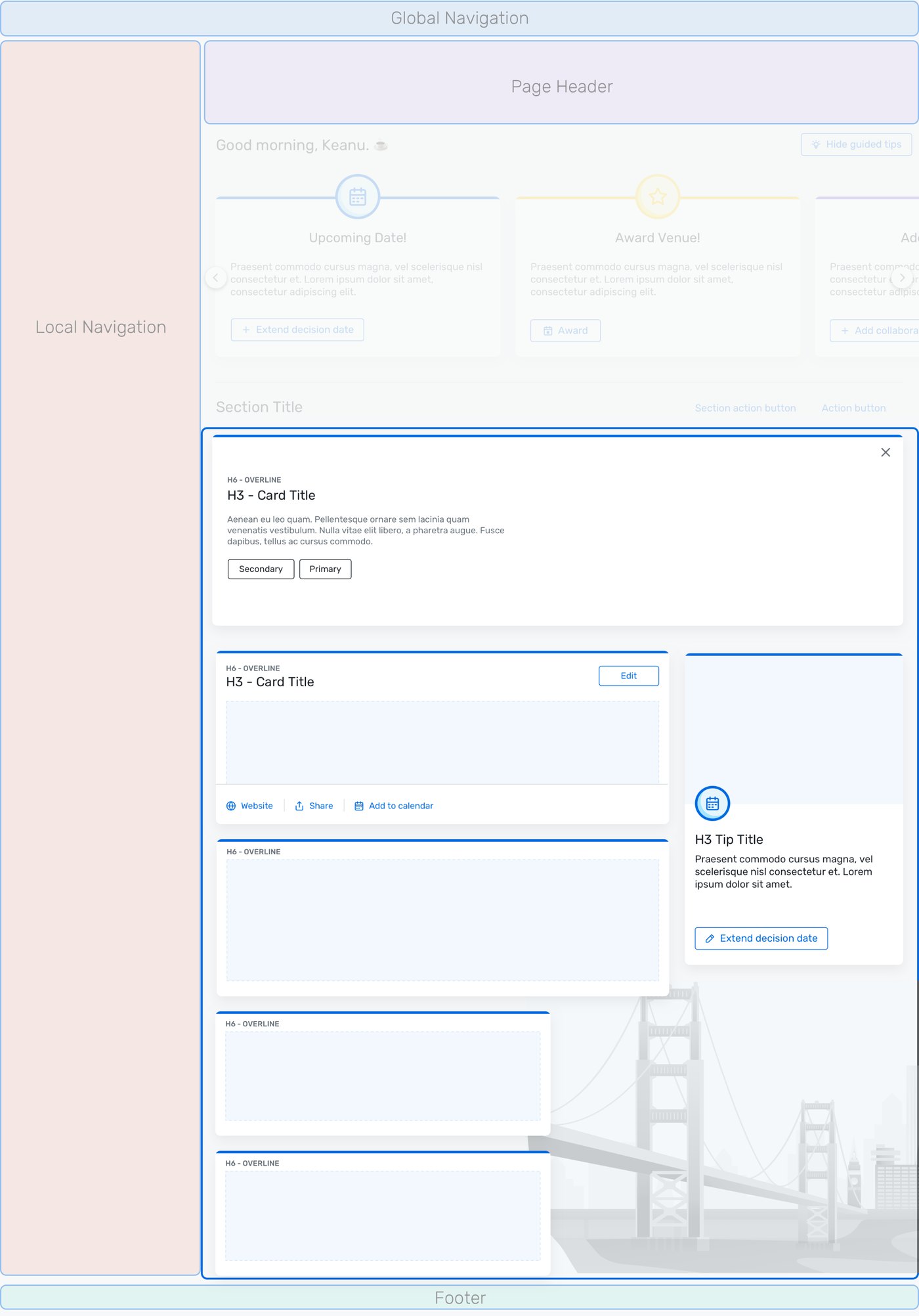
The same template broken into its regions: global navigation, page header, local navigation, cards and footer
FIG. 41 — CVENT · THE TEMPLATE’S REGIONS
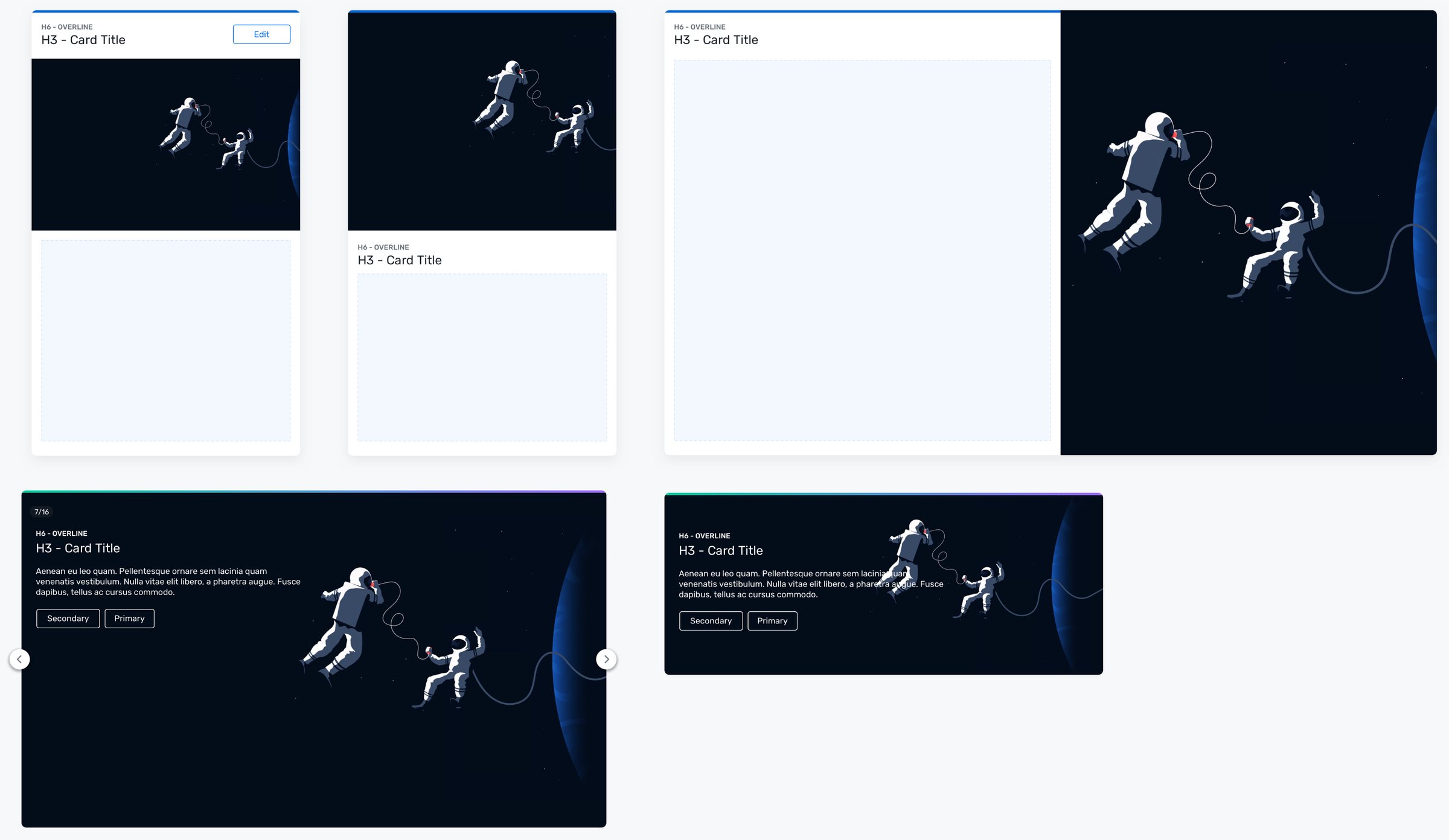
Cvent card variants with one astronaut illustration: image under a header with an Edit button, image above the title, image beside the content, and two dark hero cards with overline, title, body and Secondary and Primary buttons, one in a carousel
FIG. 42 — CVENT · CARD VARIANTS, ONE IMAGE FIVE WAYS
New Relic timeline slider: dragging the handle across a timeline of alert bars moves the As of time and a highlighted window with it
FIG. 43 — NEW RELIC · A TIMELINE SLIDER, SCRUBBED
Cvent vertical stepper: steps tick to complete one by one while the progress bar fills
FIG. 44 — CVENT · STEPPER
Cvent mobile stepper: a Requirements step whose ring and bar fill as the form is completed
FIG. 45 — CVENT · ON MOBILE
Cvent horizontal stepper: Personal Information completes and the line fills toward Shipping Address and Payment
FIG. 46 — CVENT · HORIZONTAL STEPPER
New Relic slider prototype: the handle is dragged along the track, with a value, helper text and an invalid state
FIG. 47 — NEW RELIC · SLIDER STATES